Screen mirroring allows you to duplicate smartphone content on a computer monitor in real time. Essa functionality makes everyday tasks such as presentations or entertainment on a larger screen easier. Usuários and Android and iOS have native options or third-party applications to make the connection in a practical way.
Many modern devices support wireless or USB cable transmission. The choice of method depends on the compatibility between the cell phone and the PC. Built-in Recursos provide greater security, while external tools add extra functionality.
What is screen mirroring
Screen mirroring reproduces exactly what appears on the smartphone on another display, such as a PC monitor. Essa technology transmits image and sound in real time, allowing direct interaction. Ela turns the computer into an extension of the cell phone.
Connection is mainly via Wi-Fi or USB cable. Wireless Métodos requires the devices to be on the same network. Opções with cable guarantees greater stability in environments with weak signal.
Native options for Android in Windows
Windows 11 includes native support for mirroring many Android smartphones via the Miracast protocol. Usuários activate the feature in the operating system settings. On the PC, go to “Project to this computer” and enable the wireless video option.
On your cell phone, open the quick panel and select “Cast” or “Smart View”. The device searches for the computer name and starts the connection after confirmation. Esse method transmits audio and video without the need for additional applications.
Not all Android models support Miracast natively. Marcas like Samsung and Google generally work well. Transmission occurs wirelessly, but requires a stable Wi-Fi network.
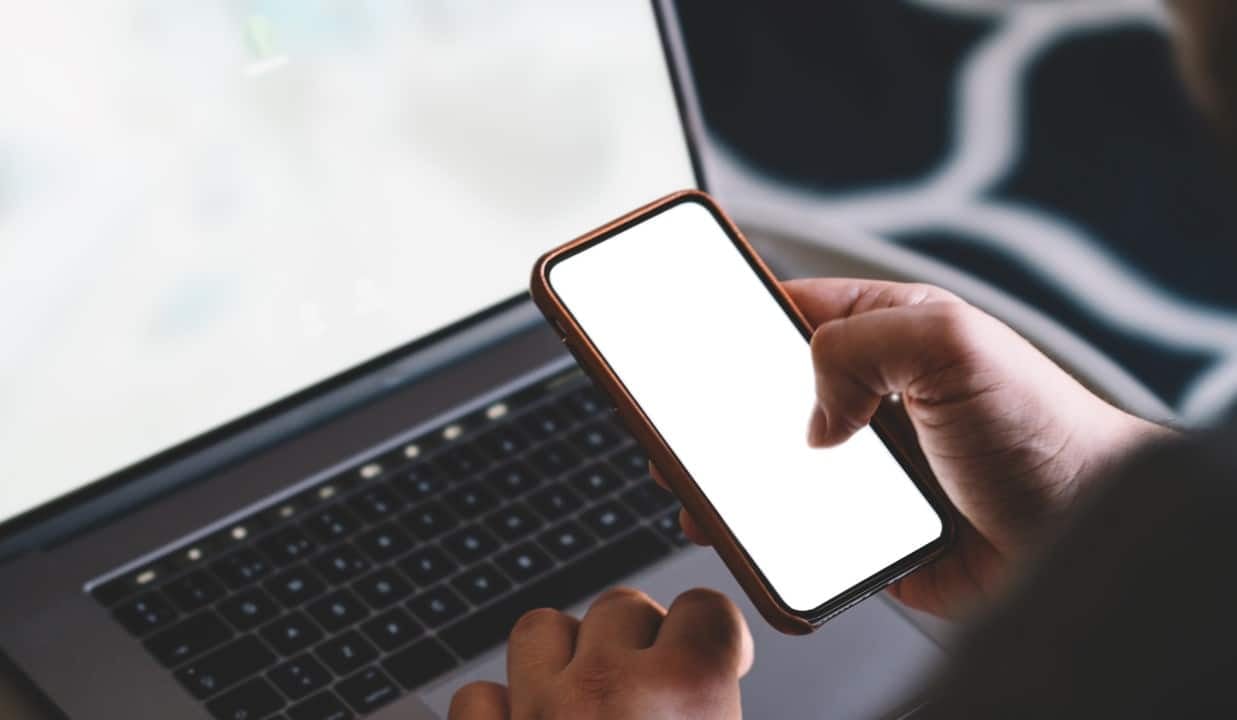
Using scrcpy to control via USB
scrcpy is a free and open source tool that mirrors Android on PC with low latency. Ela allows full control with mouse and keyboard. Usuários download the package from the official website and activate USB debugging on the cell phone.
After connecting via cable, they run the program directly. The screen appears in a window on the computer. Scrcpy supports screen recording and resolution adjustment.
- Activate developer options by tapping the build number several times.
- Enable USB debugging in advanced settings.
- Connect the cable and authorize the PC on the cell phone.
- Run the command to start mirroring.
This option works on Windows, Mac and Linux. Ela does not require root and maintains high performance.
iPhone Mirroring on Mac with AirPlay
Apple devices offer native integration via AirPlay for mirroring. Usuários connect iPhone and Mac to the same Wi-Fi network. On your computer, activate the AirPlay receiver in preferences.
On the iPhone, open Central of Controle and tap “Mirroring of Tela”. Selecionam is the name of the Mac in the list. Streaming starts in seconds, with audio included.
The process is simple and does not require extra applications. The quality reaches the device’s native resolution. Usuários interrupt the connection at any time through the same menu.
iPhone Solutions on Windows
The Windows does not support AirPlay natively, but third-party apps act as receivers. Ferramentas like AirDroid Cast or LonelyScreen turns the PC into a compatible target. Usuários install the program and activate the AirPlay option.
On the iPhone, select the PC name from the mirroring list. Connection occurs via Wi-Fi or USB in some options. Esses apps offer recording and remote control in premium versions.
Other alternatives include Reflector or ApowerMirror. Elas support high resolution and multiple devices. Usuários prioritize reliable tools to protect data.
Practical advantages of mirroring
Mirroring improves productivity in professional meetings and presentations. Profissionais demonstrate applications or content directly on the larger screen. The feature facilitates remote collaboration without file transfer.
For entertainment, users watch videos or play games on a wide monitor. PC audio provides immersive experience. Alguns methods allow full control, ideal for long typing.
Security and compatibility tips
Native methods guarantee greater privacy by avoiding third-party apps. Usuários maintain systems updated for compatibility. In wireless connections, secure networks prevent interference.
Tools like scrcpy prioritize open source and transparency. Usuários check permissions granted to applications. Mirroring consumes battery power, so cabled connections are recommended for long sessions.
Popular Alternatives in 2026
Applications like AirDroid Cast stand out for their versatility on Android and iOS. Eles support remote transmission and two-way control. LetsView offers a free option with quick connection via QR code.
ApowerMirror allows recording and annotation on the mirrored screen. Usuários choose based on specific needs. Atualizações constants improve latency and quality.
Screen mirroring evolves with greater integration between systems. Opções varieties meet different usage scenarios. Usuários experiment with methods to find the most suitable one.