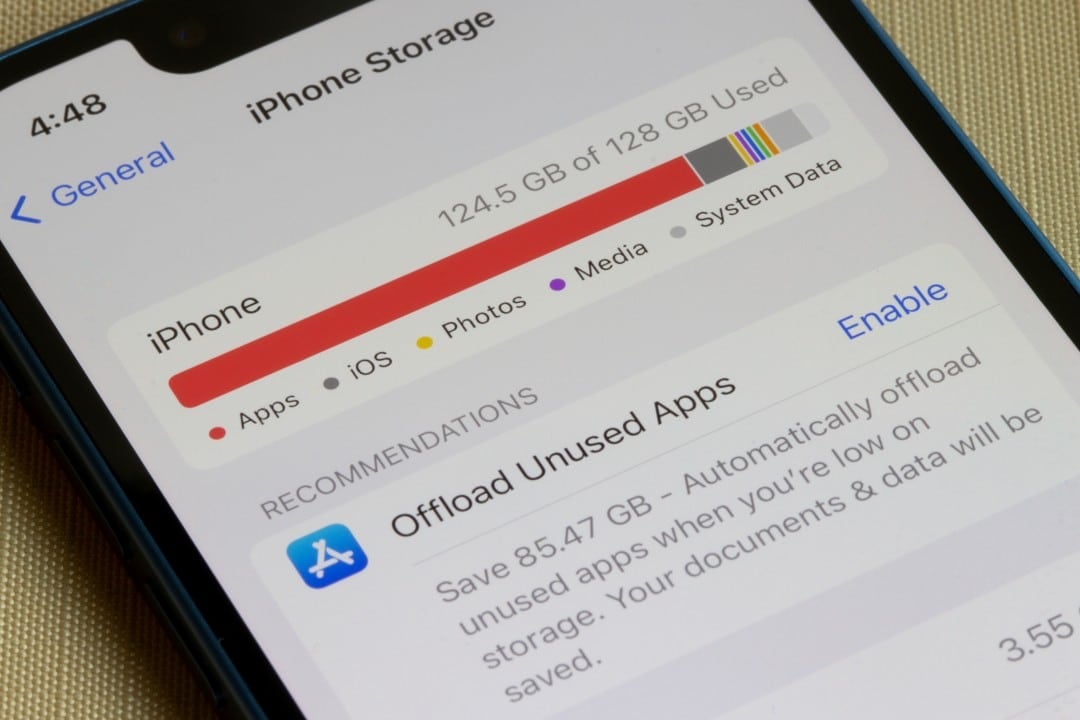
The “Storage Quase Cheio” notification has become a constant complaint among iPhone users, even affecting owners of models with capacities of 128 GB or 256 GB. The accumulation of files over the years, combined with the high quality of media and the volume of data generated by applications, quickly exhausts the available space, compromising the device’s performance and preventing the installation of new updates or applications.
The problem is multifactorial and goes beyond the simple volume of photos and videos. Dados systems that grow in a seemingly inexplicable way, social network application caches and silently accumulated message files are some of the main reasons for consuming gigabytes of memory. Felizmente, the iOS operating system itself offers robust tools to diagnose and resolve the issue without the need to resort to third-party software.
Technology experts recommend a periodic storage check, ideally once a month, to keep your device running optimally. Manter between 10% and 15% of the total free space is crucial not only for storing new files, but also for ensuring that the operating system has enough space to operate smoothly, perform updates, and manage temporary files efficiently.
The photo and video library as the main space consumer
The photos and videos category continues to be the biggest villain in storage consumption on the vast majority of iPhones. The evolution of cameras, which now capture images in very high resolution and record videos in 4K at 60 frames per second, has drastically increased file sizes. A single minute of video recorded in this format can take up around 400 MB. Nos Pro models, the situation is even more critical with the ProRes format, which can generate files of up to 6 GB per minute of recording, intended for professional productions.
In addition to videos, factors such as the use of Live Photos, which capture short video clips along with the image, and HDR (High Dynamic Range) mode, which can save multiple exposures of the same photo, contribute to rapid memory exhaustion. Muitos users also accumulate thousands of screenshots, duplicate images and received media which, together, represent a significant portion of the space occupied. Managing these files is the first step towards effective cleaning.
The growth of system data and temporary files
One of the categories that causes the most confusion and frustration is “Sistema Data”. Frequentemente, it occupies tens of gigabytes without the user knowing exactly what makes it up. The Essa section stores a variety of non-permanent files, such as navigation caches from Safari and other applications, system activity logs, Siri voices, software update packages, and other temporary files that iOS uses to function properly.
Although the system is designed to manage this space automatically, cleaning is not always done efficiently. Atividades such as video and music streaming, intense internet browsing and the continuous use of social media applications accelerate the accumulation of this data. A periodic restart of your iPhone can force some of these temporary files to be cleaned, immediately freeing up space, albeit temporarily.
In more extreme cases, when “Sistema Data” occupies an excessive and persistent volume, the most effective solution is to perform a full backup of the device to iCloud or a computer and then restore the iPhone to factory settings. When restoring the backup, the system reinstalls only essential data, eliminating orphaned files and corrupted caches that contributed to this category’s bloat.
How Messaging Apps Silently Consume Memory
WhatsApp, Telegram and iMessage are essential communication tools, but also huge data hoarders. Todas photos, videos, audios, GIFs and documents received in conversations are, by default, saved directly in the device’s internal memory. In very active groups, it is common for the volume of accumulated media to exceed 5 GB in a few months, without the user noticing.
The problem is compounded by the fact that even when deleting a conversation, media files may remain in the storage if not removed correctly. Além Additionally, files forwarded multiple times create copies that take up unnecessary space. Properly configuring these applications is critical to controlling memory consumption.
On WhatsApp, you can disable automatic media download in “Settings” > “Storage and data”, defining what can be downloaded on mobile and Wi-Fi networks. The application’s own “Manage Storage” tool also allows you to selectively view and delete large or duplicate files.
Telegram offers even more granular cache control, allowing the user to define how long media should be kept on the device (three days, one week, one month) and an upper limit on the cache size. Já iMessage, by default, keeps attachments indefinitely, but this setting can be changed in “Settings” > “Mensagens” > “Message History” to automatically delete old messages.
Games and streaming downloads
Modern mobile games, with complex graphics and expansive content, are among the apps that take up the most space. Títulos like Genshin Impact, Call of Duty: It is important to evaluate which games are actually used and uninstall those that have been abandoned.
Streaming services like Netflix, Spotify, YouTube Premium, and Apple TV+ offer the convenience of downloading content for offline access. However, it is common for users to download films, series or playlists and forget to delete them after consumption. A regular check of the downloads section of these apps can quickly and safely free up several gigabytes of space.
Step-by-step strategy to optimize storage
The most direct way to manage space on the iPhone is through the system’s native tool. By accessing “Settings” > “General” > “iPhone Storage”, the user has access to a detailed graph that shows the distribution of space between applications, photos, media, system data and others. iOS also offers personalized recommendations for optimization. The first suggestion is usually to activate the “Uninstall Apps Não Usados” option, which removes the application but keeps your saved data and documents, allowing quick reinstallation in the future without loss of information. Outra powerful tool is “Review Vídeos Grandes”, which lists the largest video files on the device, making it easy to decide which ones can be deleted or moved to a cloud service. Analisar the list of apps ordered by size is also crucial, as it reveals which programs are consuming the most space and allows direct action, whether clearing the app’s cache (when possible) or uninstalling it completely.
Using the cloud to expand capacity
iCloud is Apple’s integrated solution for expanding storage. When you turn on your iCloud Photo Library with “Optimize Armazenamento,” your iPhone keeps lower-resolution versions of your photos and videos on your device, freeing up significant space. The original high-resolution files are securely stored in the cloud and can be downloaded at any time with an internet connection.
In addition to iCloud, third-party services such as Google Fotos, OneDrive and Dropbox are excellent alternatives. Google Fotos, for example, offers a backup option that, although it compresses images slightly, may be sufficient for most users. Combinar different cloud services can be a smart strategy for distributing files and avoiding dependence on a single platform, ensuring that the iPhone’s physical storage is reserved for essential apps and files.
The importance of regular maintenance
Storage management should not be a one-off action, carried out only when the memory full warning appears. Adotar the habit of reviewing the space monthly prevents performance problems, slowdowns and crashes, in addition to ensuring that the device is always ready to receive new operating system updates, which are vital for the security and performance of the device.