

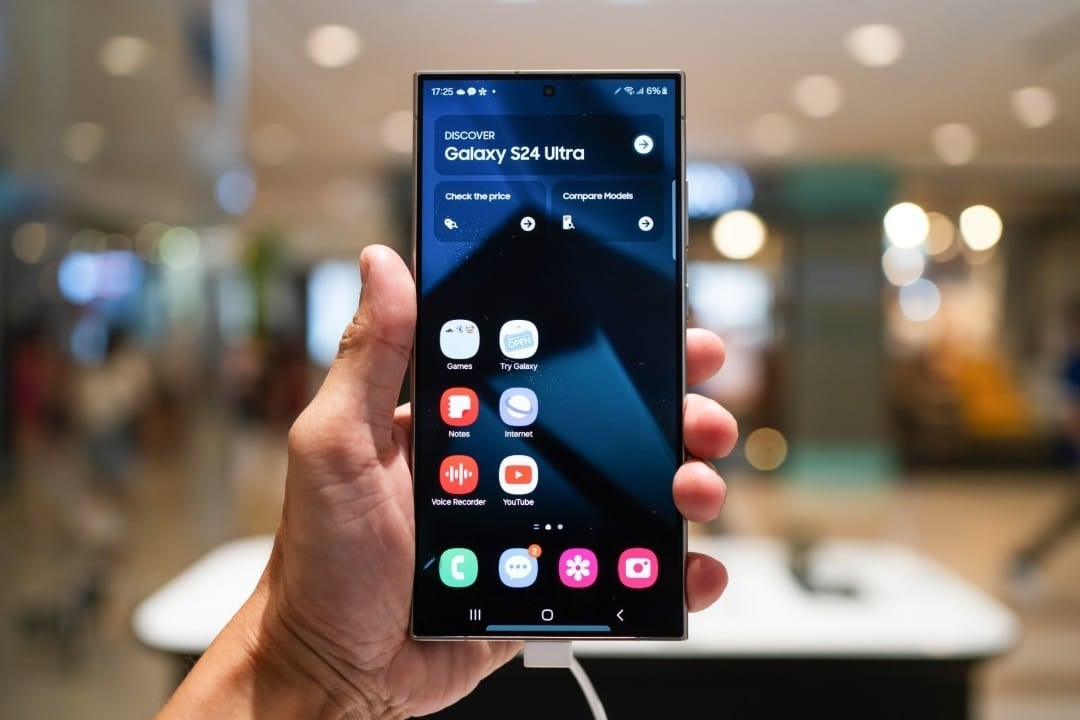
Battery life remains a top concern for smartphone users, and the Samsung offers a powerful, native tool in its One UI to combat excessive power consumption. The background application management function allows the operating system to intelligently restrict the activity of little-used software, resulting in significantly greater autonomy at the end of the day.
This feature works proactively, identifying which applications consume resources without being in active use and applying different levels of restriction. Para users, this translates into more hours of use between recharges, without the need to install third-party applications that promise optimizations, but which often compromise the security or performance of the device.
Understanding how this tool operates and how to configure it correctly is critical to extracting the maximum potential from your Galaxy device. The system offers both an automatic mode, which learns from your habits, and the possibility of manual customization, ensuring a perfect balance between energy savings and full functionality of your everyday essential applications.

What is the resting apps function
The application sleeping function, integrated into the One UI of the Samsung, is a power management system designed to limit the impact that installed applications have on the battery when they are not actively used. Muitos apps continue to run processes in the background, such as syncing data, checking for new notifications, updating your location, or downloading content, activities that consume precious processing resources and, consequently, energy. The feature acts as an intelligent supervisor, monitoring the frequency of use of each application. Aqueles that are opened rarely or that are not used for a long period of time are automatically placed in a reduced power consumption state. Essa approach stops dozens of secondary processes from silently draining your battery throughout the day, optimizing system efficiency and extending charge life so you can focus on the tasks that really matter, ensuring your device stays functional for longer.
On the same topic: Apple and manufacturers advise against using rice to dry wet cell phones; see what to do
The three categories of management
The system classifies applications into three distinct restriction levels to provide granular control over power consumption. The first category, “Apps at rest”, applies moderate throttling. Aplicativos on this list can still perform background tasks and send notifications, but at a much lower frequency, making them ideal for social networks or news portals that you don’t need to update in real time.
The second and most restrictive category is “Apps in deep sleep”. When placing software on this list, it becomes completely inactive in the background and will only start working again when it is opened manually by the user. Nenhuma notification or synchronization will occur. Esta option is perfect for games you play sporadically or event apps that are only useful on specific dates, eliminating any battery drain when not in use.
Learn more: New Galaxy Watch 9 firmware appears on server and confirms progress in software development
Finally, there is the list of exceptions, called “Apps that never go to sleep”. Aqui, you must add applications that are considered critical and require uninterrupted operation. Classic Exemplos include messaging apps like WhatsApp and Telegram, email clients, transportation apps like Uber, and banking apps that send security notifications. Manter this lean list is crucial to the success of optimization.
Advantages of intelligent management of the One UI
The benefits of using One UI application management go beyond simply increasing battery life. By reducing the number of processes running in the background, the system frees up valuable RAM and processing resources. Isso results in a more agile and responsive device, especially on models with more modest hardware. The transition between open applications becomes more fluid and the overall performance of the operating system improves as there is less competition for resources between installed software.
Another significant advantage is the adaptive intelligence of the resource. In automatic mode, the One UI learns from an individual’s usage patterns over time. The system identifies which apps are essential and which are only opened occasionally, moving them to the appropriate restriction lists without any manual intervention. Essa automation provides a continuous and personalized optimization experience, ensuring that the balance between energy savings and functionality is maintained dynamically, adapting to changes in your smartphone usage routine.
How to configure the feature step by step
To activate and customize battery management, the process is simple and accessible to all users. The first step is to open the “Settings” menu on your Samsung Galaxy smartphone.
More on this story: Native HyperOS settings allow you to optimize battery and speed up navigation on Xiaomi devices
Within the settings, scroll down the screen and locate the “Device and battery support” option. Toque on it to access your device’s optimization control panel.
On the next screen, select the “Battery” option to view consumption details and access power management tools. Ali, you will find the “Background Usage Limits” entry.
In this final section, you can activate the “Put unused apps to sleep” option so that the system works automatically. Além of this, you will have access to the three lists — “Apps in sleep”, “Apps in deep sleep” and “Apps that never go to sleep” — to manually add or remove apps as needed.
Automatic vs. automatic management manual control
The One UI offers flexibility by allowing the user to choose between letting the system manage applications automatically or taking full control manually. The automatic option is ideal for most people, as it uses algorithms to analyze usage habits and make intelligent decisions, simplifying the optimization process.
However, manual control is a powerful tool for advanced users or those who have specific needs. Ele allows you to force the deep suspension of an application that, even though it is rarely used, is identified as a large battery consumer, or ensure that a new work application, for example, is never suspended.
Learn more: Samsung releases new system update with new features for Galaxy Watch 4 users
Risks and necessary care
Although the function is extremely useful, caution must be taken when applying the most severe restrictions. Colocar Communication, health, security, or location services applications in “deep sleep” may result in the loss of important notifications, delays in messages, or failure to sync vital data. The recommendation is to start with lighter restrictions and monitor the behavior of applications before moving them to the deep suspension list, ensuring that battery savings do not compromise the device’s essential functionality.
Feature evolution in One UI versions
Samsung has consistently improved this functionality with each new version of the One UI. Nas newer iterations, such as One UI 6 and higher, idle detection algorithms have become more accurate and efficient. The system is now capable of identifying complex usage patterns more quickly, optimizing the battery more proactively and with less impact on the user experience.
These continuous improvements reflect the company’s commitment to offering a robust, usability-focused software ecosystem. The updates not only refine automatic management, but also provide more information and control to the user, cementing the feature as one of the most effective and transparent optimization tools available on the Android device market.