

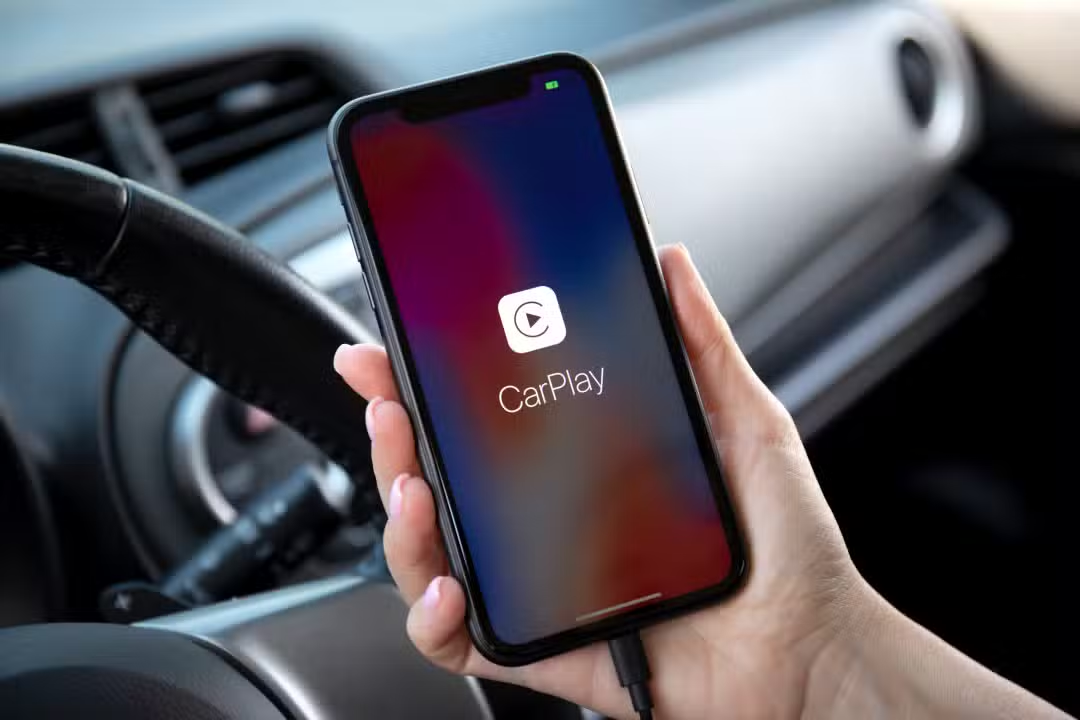
Pins on Apple Music, introduced with iOS 26, allow you to pin up to six items such as artists, albums, playlists or songs to the top of the Biblioteca tab. Essa functionality automatically syncs with CarPlay, where pinned content appears prominently on the vehicle’s screen. Motoristas gain a practical and safe option to start playback without navigating through multiple screens or relying exclusively on voice commands.
The integration makes the feature especially useful during your commute, as CarPlay mirrors the pins set up on your iPhone. Usuários that configure the touch action for direct playback bring this practicality to the automotive environment. The update meets a long-standing demand from those looking for quick access to their favorites while driving.
How to configure pins on Apple Music
Users need to complete the setup directly on their iPhone for the pins to appear in CarPlay. The process begins by opening the Apple Music app and finding the desired artist, album, playlist or song. Then, long press the item to display the options menu, where the pinning function is selected.
After pinning the content, it appears at the top of the Biblioteca tab. An additional long press on the pinned item allows you to adjust the tap action, choosing the direct playback option. Essa configuration ensures that when connecting the iPhone to CarPlay, the same tap-to-tap behavior remains in the vehicle interface.
Synchronization occurs automatically whenever the device connects to the car’s system. Motoristas report greater convenience by avoiding prolonged screen browsing while on the move. The current limitation of six pins encourages the selection of the most listened to content on a daily basis.
Advantages of pins while driving
The feature reduces the need to repeatedly interact with the CarPlay screen in search of specific songs or playlists. Instead of scrolling through lists or asking the voice assistant, the driver finds favorites pinned right at the top of the Biblioteca screen. Essa layout prioritizes safety by minimizing visual and tactile distractions.
Many drivers switch between voice commands and pins depending on the traffic situation. Quando Wizard has recognition failures, pinned items provide a reliable and immediate alternative. One-touch playback speeds up the start of your music session without interrupting your attention on the road.
Integration with other iOS 26 new features in CarPlay
iOS 26 brought general improvements to CarPlay, including visual updates and support for new widgets. The Apple Music pins stand out for complementing these changes by offering direct control over the audio. The functionality aligns with the goal of keeping interactions simple and direction-focused.
Users who update to iOS 26.4 or later notice that pins persist even after minor system updates. Compatibility covers several vehicle models equipped with CarPlay. Apple continues to refine the experience to balance convenience and security when using on the go.
Tips for optimizing the use of pins in everyday life
Drivers who repeatedly listen to the same albums or playlists benefit from prioritizing these items when selecting from the six available pins. Setting up direct playback on iPhone ensures that the same happens on CarPlay without additional adjustments. Testar Different combinations help identify the most efficient arrangement for travel routines.
You can remove or rearrange pins at any time by long-pressing and selecting the corresponding option. Essa Flexibility allows you to adapt fixed content according to changes in listening habits. Muitos users combine pins with other Apple Music features for a more fluid in-vehicle experience.
Limitations and perspectives of use
The maximum number of six pins still represents a restriction for those who have a diverse library. Alguns Drivers express a desire for a greater number of pinned items, similar to what occurs in other iOS apps. Apesar Furthermore, the feature already provides notable practicality for most daily driving routines.
Integration with CarPlay reinforces Apple’s focus on making the system more intuitive for the automotive environment. Atualizações Futures may expand customization options or add new interactions with pins. For now, the functionality is well suited to those looking for quick and secure access to their musical favorites.
Detailed steps to enable one-tap playback
Open the Apple Music app on your iPhone. Localize and long tap the artist, album, playlist or song you want to pin. Toque on the pin button in the menu that appears. Volte to the tab Biblioteca, locate the newly pinned item at the top and apply long tap again. Altere The tap action for direct playback.
This sequence ensures that the pin works with a single tap on both iPhone and CarPlay. The process takes just a few minutes and does not require any extra configurations on the vehicle. Após activation, pinned content becomes available whenever the iPhone connects to the CarPlay system.
Pins at Apple Music have emerged as one of iOS 26’s most practical additions for users who drive frequently. Automatic synchronization with CarPlay and one-touch playback transform the way you access music in your car. Motoristas gain a simple tool that prioritizes security and convenience without additional complications.