

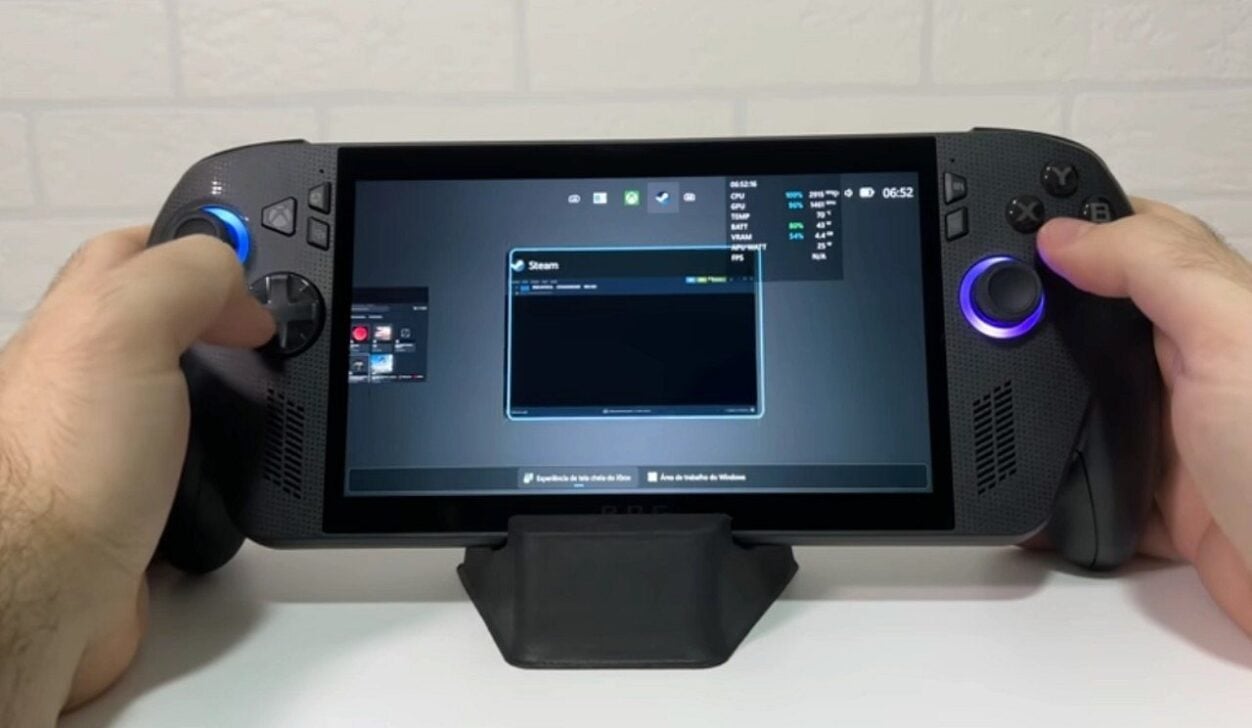
The ROG Xbox Ally and ROG Xbox Ally Para who wants to start playing immediately after purchase, the initial setup process is quick and intuitive, taking just a few minutes. Official support recommends not skipping important steps, especially the fingerprint reader, which offers security and convenience in daily unlocking the device.
Primeiros steps in system configuration
The Windows configuration wizard guides the user through all necessary steps. The first step involves connecting the device to the Wi-Fi network and logging in with the Microsoft account. Integration with the Xbox ecosystem happens automatically in most cases, recognizing Game Pass titles, already installed games and cloud gaming options. The fingerprint reader speeds up unlocking after this initial phase. Basta registers the fingerprint during setup so that access to the device becomes more practical on a daily basis.

On the same topic: July 2026: check out the main debuts and returns in the world of games
Depois from the basic configuration, the user immediately accesses the centralized game library. The system already recognizes titles from different sources and offers quick access to your entire personal library. The Xbox’s full-screen interface was designed specifically for portable gaming, prioritizing ease of navigation and an optimized visual experience.
Navegação with controls and touchscreen
The ROG Xbox Ally allows several ways of interacting with the system. The directional pad, joysticks and front buttons are used to navigate the menus, while tapping the screen also works in various situations. Para open the Barra of Jogos, press the Xbox button together with RB or slide your finger from the left edge to the center. Essa action gives quick access to important settings during matches without interrupting the game.
- Troque application by holding the Xbox button or swiping up from the bottom of the screen.
- Acesse or Command Center integrated with Game Bar for quick performance and graphics adjustments.
- Abra or Armoury Crate SE complete from the same interface when you need more advanced options.
The Command Center brings together customization features both inside and outside of games, making it easier to control performance and visual settings. Integration between ASUS hardware and Xbox software keeps the focus on the gaming experience, without the need to access complex Windows menus.
Gaming Copilot: intelligent assistant during matches
Gaming Copilot, still in beta, works as a personal assistant within games. Pressione and hold the button on Centro of Comando to open the widget on Barra of Jogos and complete the initial integration process. Depois In addition, hold the Biblioteca button and release to start a conversation with the assistant. The feature can suggest tips for achievements, provide guidance on in-game challenges and offer strategies without leaving the current screen.
More on this story: Games industry adjusts to the launch of GTA 6 with strategies at Summer Game Fest
Muitos owners report that the Gaming Copilot especially helps with complex and challenging titles. Integration with the Xbox interface keeps the focus on the gaming experience, allowing the player to receive contextual help without losing immersion. The assistant learns over time and offers increasingly personalized suggestions as the user progresses through the titles.
Multi-platform centralized Biblioteca
The ROG Xbox Ally Biblioteca centralizes titles from different platforms in a single location. Pressione the dedicated button above the right analog stick to open the section. Lá already owned games appear, available on Game Pass and titles via cloud gaming. It is possible to select more than one category at the same time, making it easier to search for specific games. The combination “Owned” and “Installable” shows native options for the device, while the Loja is in the left sidebar for those looking for new features.
Jogos from other PC stores also enter the aggregated library. Acesse the Meus Aplicativos tab and choose the desired platform from those available. If the launcher does not appear automatically, download the application directly through the Edge browser integrated into the system.
Jogo offline and travel preparation
The portability of the ROG Xbox Ally allows sessions in places without an internet connection. Most single-player games run normally without network access, offering guaranteed fun anywhere. Teste titles offline before long trips to ensure compatibility. Baixe updates and DLCs in advance by checking the official guide on offline play on Windows for specific details. On the plane, activate airplane mode to save battery and avoid unnecessary interruptions during the flight.
Learn more: Farewell to ‘Mario Kart Tour’: Nintendo confirmed the shutdown of the mobile game in September
Acessibilidade and external controls expand possibilities
The device has visual, cognitive and sensory accessibility settings. Acesse by the Perfil and Configurações icon in the upper left corner, then go to Configurações and select Acessibilidade. Remapeamento buttons and input customizations are available on the Armoury Crate SE. Xbox’s wireless Controles connects the same way as a regular PC, offering flexibility for different types of gamers.
- Ligue control and press the pairing button.
- If no notification appears, go to Configurações > Bluetooth in Barra of Jogos.
- Adicione the device and follow the on-screen instructions to complete pairing.
Dentro In the ROG Xbox Ally box there is a simple cardboard support that serves to support the device while charging or playing with an external controller, without blocking the view of the screen. At home, connect the laptop to a TV or external monitor via the USB-C port and use a charging dock for greater stability. The lights around the joysticks allow customization through the Armoury Crate SE, where you can adjust the mode or completely turn off when necessary.
Atualizações and continuous system optimization
The ROG Xbox Ally receives constant improvements that keep the device optimized and with new features. Standard gaming Perfis balances FPS and power consumption across several popular titles. Indicadores save sync confirmations confirm upload to the cloud, ensuring progress is preserved. Verifique updates in two main places: on Windows Update within Configurações accessed by Barra of Jogos, or on Armoury Crate SE by Central of Atualizações. Instale all available and restart when prompted to ensure all improvements are applied correctly.