How to save battery on your Android phone by disabling constant device searches
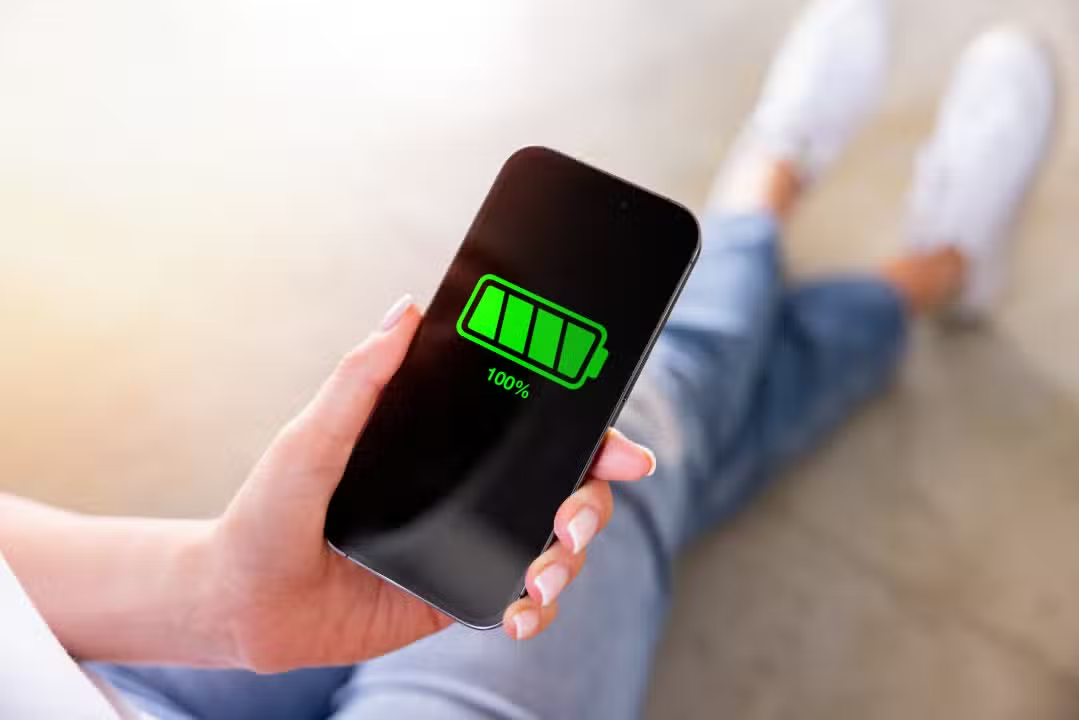
Many users of Android smartphones face the problem that the battery drains quickly throughout the day. Isso occurs mainly due to background processes that maintain active connections, such as searches for nearby devices or Wi-Fi networks, even without direct user request. Esses features, designed to facilitate integrations, consume constant energy and reduce autonomy.
Experts recommend simple adjustments to settings to optimize battery usage. Desativar non-essential functions allow the device to focus on priority tasks, extending the charge for several hours. Milhões of people adopt these practices daily to avoid interruptions.
The Android operating system includes connectivity options that remain on by default. Essas tools aim to improve the experience, but directly impact battery life in real-world use.
Functions that consume the most energy
Several features of Android operate continuously in the background. Eles look for signals and connections, generating unnecessary processing costs.
Searching for nearby devices keeps the Bluetooth scanning the environment at all times. Essa function facilitates quick connections, but drains battery even when there are no devices nearby.
Location history and accuracy uses GPS and networks to track positions. Embora useful for maps, they consume moderate energy when permanently activated.
- Constant search for available Wi-Fi networks
- Tracking nearby Bluetooth devices
- High accuracy in location service Google
- Automatic background app updates
Step by step to disable features
Accessing the correct settings is simple and requires no extra apps. Menus vary slightly by manufacturer, but follow similar patterns in Android.
Enter Configurações and select the Google section. Depois, go to Dispositivos and Compartilhamento and disable the search for nearby devices option.
In Localização, adjust the precision of Google for economy mode. Isso reduces GPS usage without compromising basic functions like occasional navigation.
Other tweaks include limiting background apps via Bateria. The system identifies high consumption and suggests automatic restrictions.
Risks and benefits of changes
Disabling these options does not affect the overall performance of your smartphone. Bluetooth and Wi-Fi continue to work when manually enabled for specific connections.
The main gain is the preservation of energy for essential activities. Usuários report a significant increase in daily autonomy after the adjustments.
Native saving modes
Android offers integrated tools to manage consumption. Ative the battery saver mode in Configurações to limit processes automatically.
Adaptive battery learns usage habits and restricts infrequent apps. Essa function optimizes performance without constant user intervention.
Combine with adaptive brightness and short screen-on time. Esses features complement manual deactivations for better results.



Brightness and screen adjustments
The screen represents a large part of energy consumption. Reduza the brightness manually or activate automatic mode to adapt to the environment.
Decrease the lock time to 30 seconds. Isso prevents the screen from remaining lit unnecessarily after use.
On devices with AMOLED, use dark theme. Pixels black ones consume less power, prolonging the load on dark interfaces.
- Enable adaptive brightness for auto-ranging
- Set quick screen lock
- Prefer dark themes in supported apps
- Disable Always On Display if available
- Reduce refresh rate to 60 Hz in non-intense games
Background app control
Applications running hidden are responsible for constant draining. Verifique battery usage in settings to identify top consumers.
Restrict social media and messenger activities when not in use. Android allows individual optimization per app.
Automatic updates via the app store also waste energy. Configure to only occur on loaded Wi-Fi.
Many users get extra hours of battery life with these controls. The combination of restrictions ensures a balance between functionality and autonomy.
Unnecessary connections
Wi-Fi, Bluetooth, and mobile data continuously scan for signals. Desative when not needed to avoid useless searches.
GPS consumes when maintaining precise location active. Limite permission only for essential apps like maps.
Excessive vibration and notifications activate the engine and screen repeatedly. Prefira sound or silent in suitable environments.
Additional tips for autonomy
Avoid extreme temperatures that accelerate discharge. Mantenha the device in ventilated places during charging.
Charge up to 80-90% to preserve long-term battery health. Ciclos complete occasional calibration of the meter.
Restart your smartphone periodically to clear accumulated processes. System Atualizações bring power optimizations.
These habits, combined with the main adjustments, allow intense use without early recharging. Testes show gains of up to 30% in daily autonomy.
Veja Tambem em News (EN)

Research reveals that parents are unaware of how their children use artificial intelligence

Samsung releases new system update with new features for Galaxy Watch 4 users

Digital retail reduces the value of the Galaxy S25 5G smartphone with bank bonuses and device exchange

Amazon’s wireless CarPlay adapter has a 50% discount and high approval ratings from drivers

Zach Cregger’s new Resident Evil ignores games and focuses on an unprecedented story with new characters

Rumor suggests that Nintendo is preparing a special edition of the Switch 2 with a remake of Ocarina of Time

Apple accelerates production of the iPhone 17e and develops new Air model with dual camera system

Epic Games platform releases twelve high-budget games at no permanent cost for PC users

PlayStation 5 Pro price drop accelerates digital retail sales and eliminates global stocks

New Galaxy Watch 9 firmware appears on server and confirms progress in software development

Apple’s commemorative project tests cell phone with 1.1 millimeter edge and curved screen for 2027