
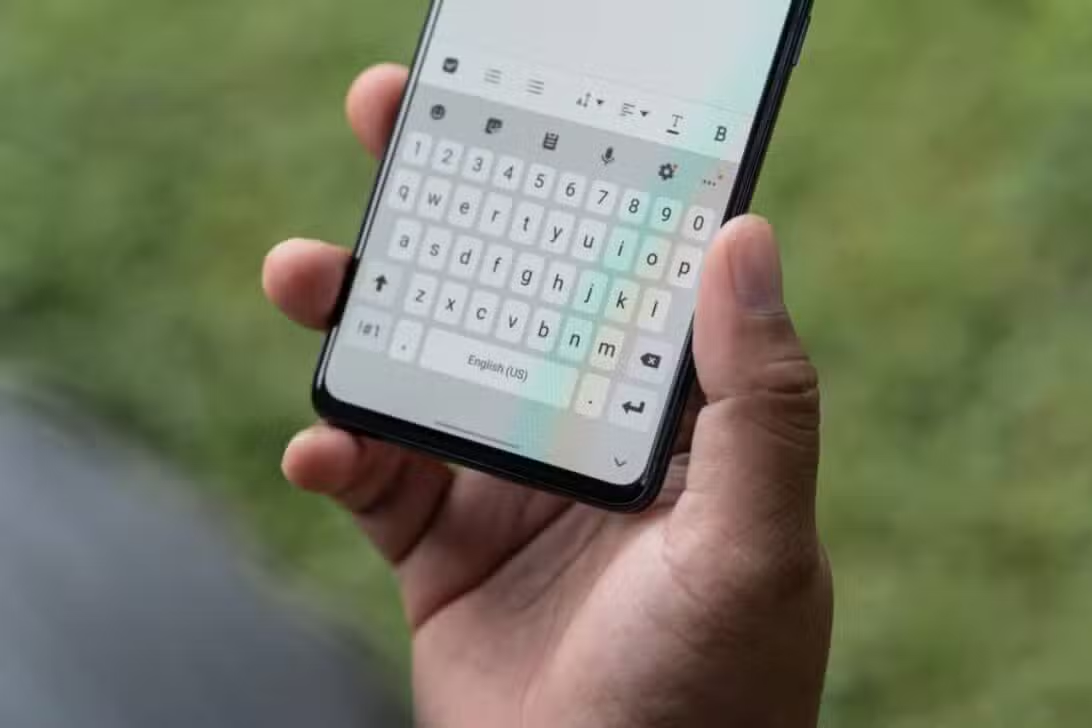
The Samsung’s native keyboard has received significant advancements in One UI 8, integrating artificial intelligence features for real-time translation, text rewriting and contextual suggestions. Essa update turns the keyboard into a central tool for everyday productivity on Galaxy devices. However, the default settings still have limitations that can cause slowdowns or excessive corrections. Usuários report that specific tweaks resolve these issues and elevate the typing experience.
The One UI 8, based on the Android 16, has reached models such as the Galaxy S25 series and is expanding to other devices. Especialistas highlight that the keyboard now competes better with alternatives like the Gboard, thanks to improvements in prediction and integration with Galaxy AI.
Accessing basic settings
The first step to optimizing the keyboard involves accessing the settings menu directly from the toolbar. When opening the keyboard in any application, tap the gear icon to enter the Samsung Keyboard options. Essa area contains controls for layout, prediction and haptic feedback.
Many users ignore this quick entry, but it allows immediate changes without navigating the general system menu. From there, you can activate or deactivate features that directly impact the fluidity of daily typing.
Controlling Aggressive Autocorrection
The Auto replace function remains a critical point on the Samsung keyboard, even in the One UI 8.
- Keep Predictive text enabled for suggestions in the top bar.
- Disable Auto replace to avoid unwanted interventions.
- This preserves useful predictions without the keyboard automatically modifying the text.
Tests show that this combination reduces errors and improves speed by up to 20% in real usage scenarios.

Improving visibility in different conditions
Bright light environments reveal limitations in the default keyboard themes. The High contrast keyboard option solves this by increasing the contrast between keys and background.
This configuration especially benefits OLED screens, like those on the Galaxy S25, where colors stand out. Combine with dark themes to maximize outdoor readability. Usuários report fewer typos in glare conditions after enabling this mode.
Integrating AI capabilities in a practical way
The Writing Assist suite represents one of the biggest attractions of the Samsung keyboard in the One UI 8. Ela includes tools for tone rewriting, grammar correction, and instant translation.
For quick access, pin the Writing Assist icon (represented by three stars) to the main toolbar. Arraste it from the three-dot menu to position it permanently. Essa customization keeps AI functions within reach without interrupting your typing flow.
Adjusting speed and haptic feedback
The default keyboard prioritizes security over speed, resulting in delays in backspace and alternate characters. In the Swipe, touch and feedback menu, change the backspace to Fast.
Reduce Touch and Hold Delay to Short (0.2 seconds) for faster responses in numbers and symbols. Essas changes make typing more responsive, especially in quick messages or notes.
Exploring Advanced Customizations with Good Lock
The Keys Cafe module, available in the Good Lock, elevates keyboard customization in the One UI 8. Ele allows you to create custom themes, adjust autocorrect sensitivity, and add multifinger gestures.
Upgrade Keys Cafe to Galaxy Store to access gestures like swipe to copy or open emojis. Esses features transform the keyboard into a more intuitive interface adapted to individual use.
Managing clipboard and screenshots
Integration with the Samsung clipboard gains strength when activating the Save screenshots to clipboard option. Cada screenshot is stored permanently, even after subsequent copies.
This makes it easy to quickly share images in conversations or documents. The clipboard acts as a persistent database, accessible directly from the keyboard.
Enabling gestures for greater efficiency
One UI 8 introduces advanced gestures via Keys Cafe, such as two- or three-finger swipes for actions such as undo, paste or open wizards. Configure personalized directions for frequent tasks, like switching languages or starting voice dictation.
These shortcuts reduce manual taps and speed up common flows. Combine with one-handed mode for large devices.
One-Handed Mode and Layout Considerations
For wide screens, enable one-handed mode in style and layout settings. Ele moves the keyboard to one side, making it easier to reach with your thumb.
Also adjust the height and format to portrait or landscape. Essas options improve ergonomics for prolonged use.
The Samsung keyboard in One UI 8 offers high potential with artificial intelligence and deep customizations. Ajustes in autocorrection, contrast, and gestures resolve standard limitations and create a fluid experience. Usuários that exploit Good Lock and native options report satisfaction comparable to third-party keyboards. Continuous updating of the Samsung reinforces the competitiveness of this essential component in the Galaxy devices.