
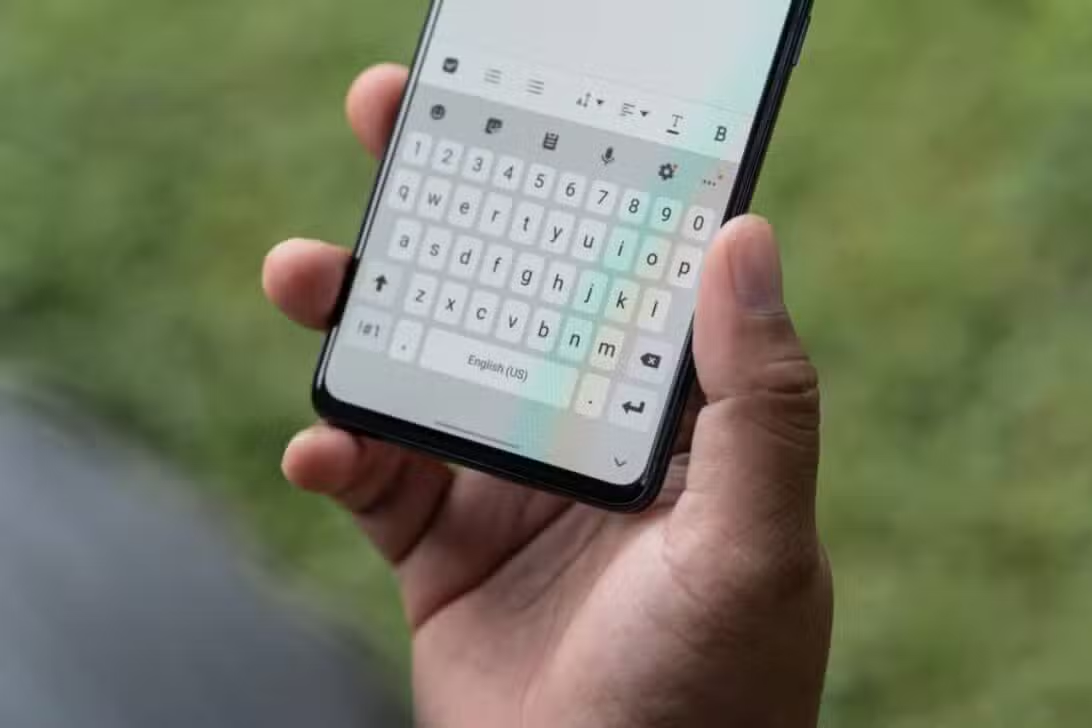
The native Samsung keyboard on Galaxy devices has been improved with the arrival of One UI 8, which integrates advanced artificial intelligence features. The new version, based on Android 16, offers real-time translation tools, contextual suggestions and text rewriting, positioning the keyboard as a central component for users’ productivity.
Despite the innovations, many of the most powerful features are not enabled by default or are conservatively configured. Isso can result in a slower typing experience or inaccurate automatic corrections, leading many to seek alternatives like Gboard. However, specific tweaks can resolve these issues.
The update is being distributed to the latest models, such as the Galaxy S25 line, and will gradually reach other compatible devices. With the correct settings, the Samsung keyboard becomes an agile and intelligent tool, capable of competing directly with the main competitors on the market.

Accessing controls quickly
The most efficient way to customize the Samsung keyboard is through the gear icon located in the top toolbar. Tapping it in any text application takes the user directly to the Samsung Keyboard settings menu. Esse shortcut avoids the need to navigate through the general system menu, allowing immediate modifications that affect the fluidity of writing.
Disabling excessive autocorrection
One of the most criticized points by users of the Samsung keyboard is the “Auto replace” function. Embora is intended to correct errors, its aggressive implementation often alters correct words, causing frustration and requiring the user to go back to correct the correction, which negatively impacts speed.
The ideal solution is to keep the “Predictive text” function enabled, which continues to display useful suggestions in the top bar, but disable “Auto replace” completely. Dessa way, the user maintains the assistance of predictions without the system interfering in an unwanted way with what is being written.
Usability studies indicate that this simple change can increase typing speed by up to 20%, as it eliminates the need for constant revisions and allows for a more natural and continuous writing flow. The change is especially noticeable in quick conversations and when writing longer texts.
Improving keyboard readability in any light
Keyboard visibility can be challenging outdoors or in direct sunlight, even on high-quality displays. To resolve this issue, Samsung offers the “High contrast keyboard” option within the layout settings. When activated, this function increases the distinction between the keys and the background, making characters more legible.
This feature is particularly effective on screens with OLED technology, present in devices like the Galaxy S25, where the accentuated contrast improves the clarity of colors and contours. Para an even better visual experience, the combination of the high contrast keyboard and the operating system’s dark mode is recommended as it reduces excessive glare and minimizes eye fatigue during prolonged use. Usuários report a significant reduction in typing errors caused by screen reflections after enabling this feature.
Integration with Galaxy AI artificial intelligence
The big difference of One UI 8 is the “Writing Assist” toolset, which uses Galaxy AI to improve communication. Este feature goes beyond simple spelling correction, offering a contextual analysis of the text to suggest improvements. Entre its main features are the ability to rewrite sentences to adjust the tone (from informal to professional, for example), advanced grammar checking that identifies complex errors and instant translation of conversations without having to leave the application. To ensure that these tools are always accessible, it is essential to customize the keyboard toolbar. The Writing Assist icon, represented by three stars, can be dragged from the expansive menu (three-dot icon) and pinned to the main bar, allowing AI functions to be activated with a single touch and optimizing the workflow.
Increasing response speed and feedback
The default settings for the Samsung keyboard tend to prioritize precision over speed, which can be seen in the delay when using the backspace key or when accessing secondary characters. To adjust this, the user must navigate to the “Swipe, touch and feedback” menu.
Within this section, it is possible to change the backspace speed to “Fast”, which allows you to delete texts more quickly. Outra crucial change is to reduce the “Touch and Hold Delay” (Touch and Hold Delay) to “Short”, setting the time to 0.2 seconds. Isso makes accessing numbers and symbols, which require a long press, much more immediate.
Advanced customization with the Good Lock app
For users who want an even greater level of customization, Samsung offers the Keys Cafe module, part of the Good Lock application, available from Galaxy Store. Keys Cafe dramatically expands customization possibilities, allowing you to create completely unique keyboard layouts and themes with custom colors, fonts, and effects.
In addition to aesthetics, the module allows you to adjust the autocorrection sensitivity granularly, offering control that is not present in standard settings. The tool also allows you to configure advanced gestures, such as swiping with two or three fingers to perform specific actions, such as copying, pasting, undoing or opening the emoji selector.
It is important to keep Keys Cafe always updated to ensure access to the latest features, which are constantly added by the Samsung development team. With it, the keyboard transforms into an interface truly adapted to each individual’s preferences and usage style.
These advanced features transform the typing experience, making it more efficient and intuitive. The combination of custom gestures with a visually pleasing layout takes the native keyboard to a new level of productivity.
Optimized clipboard management
The Samsung keyboard clipboard in One UI 8 has gained a feature that makes it more powerful: the ability to save screenshots directly. When activating the “Save screenshots to clipboard” option in the settings, every image captured on the device screen is automatically added to the clipboard.
This integration turns the clipboard into a persistent, easy-to-access repository for images, making it easy to share quickly in conversations, emails, or documents. Screenshots remain saved even after the user copies other texts, functioning as a visual database always at hand.