Battery optimization on Samsung phones: how One UI’s resting apps feature works

Battery life remains a top concern for smartphone users, and the Samsung offers a native and efficient solution to optimize the battery life of your Galaxy devices. Integrada to One UI interface, the background application management function allows you to restrict the activity of little-used software, resulting in significant energy savings without the need to install third-party tools.
This intelligent feature monitors the device owner’s usage patterns and automatically or manually classifies applications into different levels of activity. By limiting unnecessary processes that consume precious resources while they are not in active use, the system can extend the cell phone’s operating time between recharges, improving the daily experience and ensuring that the device is available when you need it most.
Accessing the tool is simple and can be found directly in the system settings, within the device and battery care section. With just a few tweaks, you can completely customize which apps should have complete freedom of operation and which should be put into a hibernation state to preserve charge, giving you granular control over your smartphone’s power consumption.
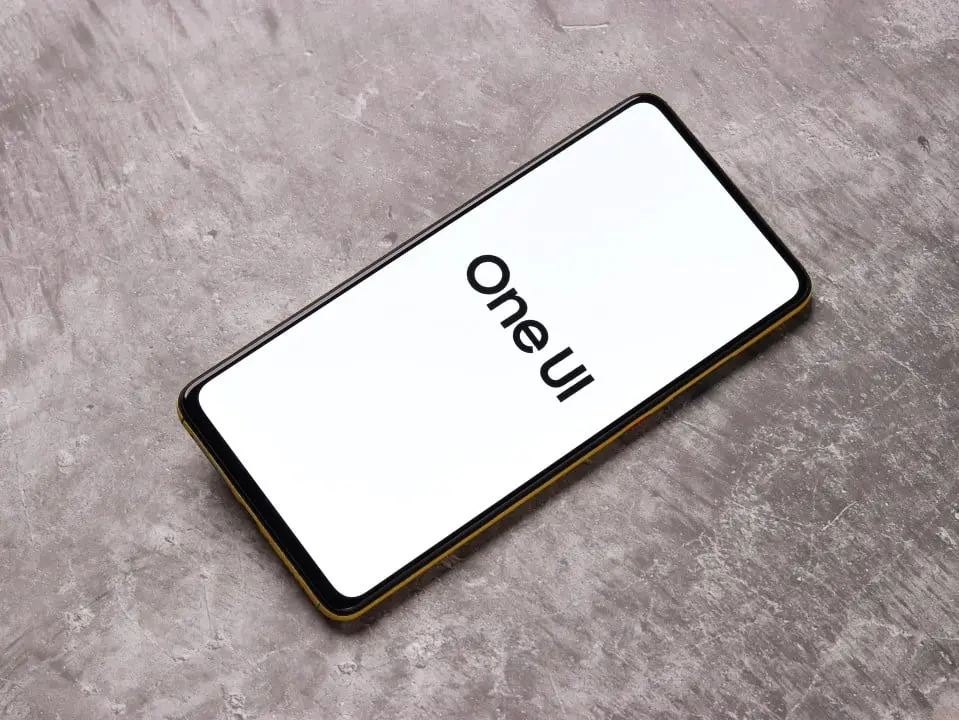
Understanding application restriction modes
The One UI organizes power management into well-defined categories for easy customization. The main one is “Apps at rest”, which allows applications to perform tasks in the background on a limited and occasional basis, ideal for software that does not need constant synchronization but can still send sporadic notifications.
On the same topic: The autonomy of the Galaxy S27 Ultra raises concerns and may not surpass Apple rivals
For tighter control, there is the “Apps in deep sleep” category. When you move an application to this list, it becomes completely inactive and will only start working again when it is opened manually by the user. Esta option is perfect for games or tools that are rarely used, as it prevents them from consuming any processing resources or mobile data without explicit permission.
Finally, the “Apps That Never Sleep” list serves as an exception to the rule, ensuring that critical applications such as instant messengers, emails, or GPS navigation services maintain their full functionality. Colocar an application in this category ensures that all your notifications and background synchronizations occur in real time, without any type of restrictions imposed by the system.
Learn more: Samsung’s advanced tool transforms Galaxy cell phone interface with new visual adjustments
Enhancements with new versions of the One UI
With the continuous evolution of its interface, Samsung has refined the algorithms responsible for energy management. The latest versions of the operating system, such as the One UI, improve the automatic detection of inactive applications, making the process even more intelligent and proactive for the user.
The system learns from usage habits and, after a few days, is able to identify software that is not opened frequently, suggesting that it be added to the sleep or deep sleep lists. Essa automation reduces the need for manual intervention and ensures that the device is always optimized, even if new applications are installed.
Reports from users using devices with the latest updates indicate a notable improvement in battery drain caused by idle processes. The system’s accuracy in predicting usage needs minimizes energy consumption without compromising the functionality of applications that are truly important to the user’s routine.
This continuous optimization demonstrates the brand’s commitment to offering an increasingly fluid and lasting user experience. Software updates not only bring new visual features, but also substantial improvements to the core of the system, which translate into practical benefits, such as greater battery life in everyday life.
See Also


More on this story: Samsung releases new system update with new features for Galaxy Watch 4 users
Practical guide to setting usage limits
Para activate and customize the battery optimization feature on Galaxy cell phones, the process is intuitive and centralized in the system settings. The first step is to access the “Settings” menu, scroll to the “Device and battery support” option and then tap “Battery”. Dentro of this section, the user will find the “Background Usage Limits” option, which is the control center for this functionality. When entering this menu, it is recommended to activate the “Suspend unused applications” toggle switch, allowing the operating system itself to identify and put to sleep software with low frequency of use. For more detailed customization, the user can explore the lists of “Sleeping Apps”, “Deeply Sleeping Apps” and “Apps That Never Sleep”, manually adding or removing apps by tapping the “+” icon on each screen and selecting the desired software. It is advisable to analyze the battery consumption graph to identify which applications are the biggest energy killers and, from there, decide the most appropriate restriction for each one, always remembering to add communication and essential applications to the exceptions list so as not to miss important notifications.
Real impact on device autonomy
The main advantage of using background app management is the direct extension of battery life between charges. In everyday use scenarios, these savings translate into additional hours of operation, allowing the user to finish a day of work or a long trip without worrying about looking for an outlet. The function prevents dozens of applications from carrying out synchronizations and constant checks, activities that, together, represent a considerable portion of total energy consumption.
In addition to the gain in autonomy, restricting background processes can also contribute to better overall system performance. With fewer applications competing for processing resources and RAM, foreground tasks, such as browsing the internet or using the camera, tend to become more fluid and responsive. Essa optimization is especially noticeable on mid-range devices, where resource management is more critical for a satisfactory user experience.
Essential Precautions When Managing Applications
Although the deep sleep function is powerful in saving battery power, its indiscriminate application may cause unwanted effects. Colocar Communication, social networking, or email applications in this category may result in important notifications being delayed or not delivered, as the software will only be activated when opened manually.
Learn more: New Galaxy Watch 9 firmware appears on server and confirms progress in software development
It is essential that the user carefully evaluates which applications can be restricted without compromising their routine. The recommendation is to start with a conservative approach, adding only sporadically used games and tools to the most severe restriction lists, and monitor device behavior before applying limitations to other software.
An integrated and secure solution
Using the native One UI tool offers a security and stability advantage compared to third-party apps that promise to optimize your battery. As it is a solution integrated into the operating system, it works harmoniously with the device’s hardware and software, without introducing risks of malware or instability that can accompany software from unknown sources.