
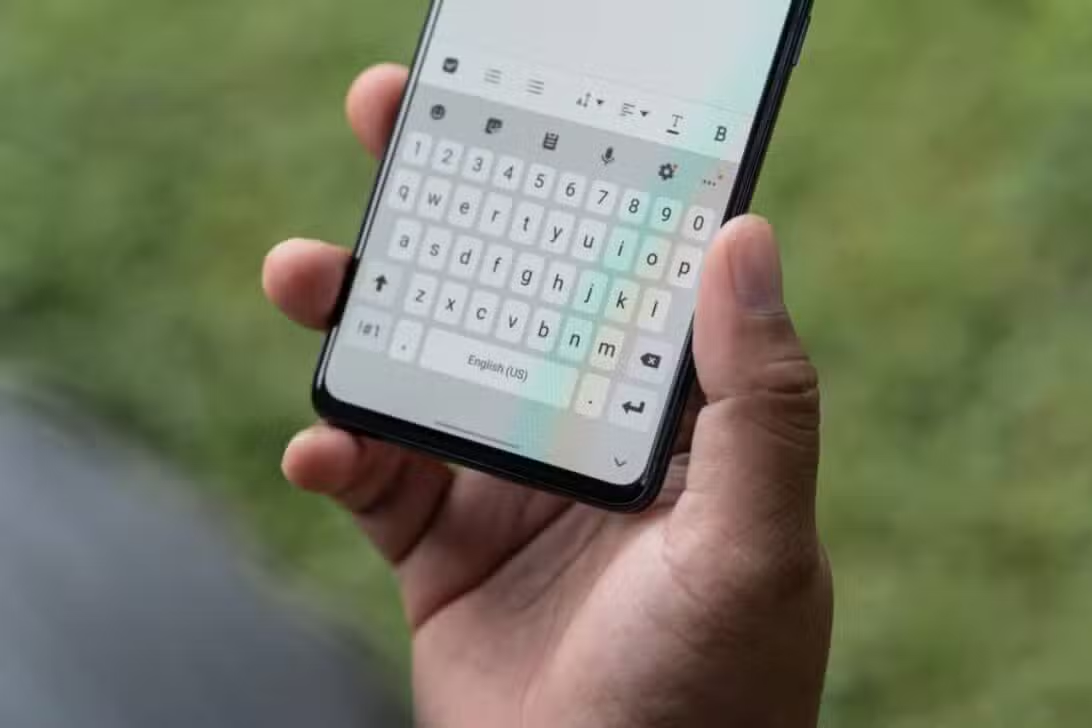
The arrival of One UI 8, an operating system based on Android 16, consolidated the Samsung native keyboard as a robust and intelligent tool. Equipado powered by Galaxy AI, it now offers real-time translation, advanced contextual suggestions and text rewriting, transforming the way users interact with their Galaxy devices.
Despite significant advances, default keyboard settings don’t always deliver the best performance. Muitos users of new models, such as the Galaxy S25 series, report that the system may be slow or excessively aggressive automatic corrections, which interfere with typing fluidity. The good news is that specific adjustments can resolve these issues.
Exploring hidden settings and customizing artificial intelligence tools are key steps to unlocking the component’s full potential. With some strategic changes, it is possible to obtain a faster, more accurate typing experience that is fully adapted to the individual needs of each user, competing directly with the best alternatives available on the market.

Essential adjustments for everyday life
The fastest way to optimize the Samsung keyboard starts directly from its interface. When opening the keyboard in any application, simply tap the gear icon located in the top toolbar to access the full settings menu. Este shortcut avoids the need to navigate complex operating system menus.
In this centralized area, the user finds controls for the language, layout, visual themes and, most importantly, the predictive text and haptic feedback functions. Realizar modifications to this panel have an immediate impact on usability, allowing adjustments to be tested in real time to find the ideal combination of comfort and efficiency.
How to manage autocorrection and AI
One of the points that generates the most frustration is the “Auto replace” function. Embora useful in some cases, it often changes words incorrectly, especially in longer texts or with technical terms, forcing the user to correct the corrections. Isso can considerably slow down writing speed.
The ideal solution is to disable automatic replacement, but keep the “Predictive text” function enabled. Dessa way, the keyboard will continue to offer word suggestions in the top bar, which can be selected with a tap, but will not change what has already been typed without the user’s explicit permission.
To enhance the use of artificial intelligence, it is recommended to pin the “Writing Assist” icon, represented by three stars, to the toolbar. By dragging it from the three-dot menu, access to functions such as translation, spell checking and text tone adjustment becomes instantaneous, integrating AI into the workflow in a practical way.
Improving readability in any environment
Typing outdoors or in bright light can be challenging because the reflection on the screen makes it difficult to see the keys. Para To address this issue, the Samsung offers the “High contrast keyboard” option, a feature designed to maximize visibility in any lighting condition.
When activated, this function applies a theme that drastically increases the contrast between the keys and the keyboard background. Geralmente, this translates into lighter characters on a dark background or vice versa, with well-defined contours that make it easier to identify each letter and symbol.
The benefit is particularly notable on devices with OLED screens, such as those in the Galaxy S line, where blacks are deeper and colors more vibrant. The combination of the high-contrast keyboard and the operating system’s dark mode creates a visually comfortable and functional experience ideal for outdoor use.
Users who adopt this configuration report a significant reduction in typing errors caused by screen reflections. It’s a simple adjustment, located in the keyboard’s theme settings, but it provides a substantial improvement in daily usability, making typing more precise and less tiring for the eyes.
Increasing response speed and feedback
The keyboard’s agility is directly linked to the speed with which it responds to the user’s commands. By default, Samsung configures the system with small delays in functions such as deleting text and accessing secondary characters, in order to avoid accidental actions. However, for users looking for maximum performance, these delays can be an obstacle. In the “Swipe, touch, and feedback” menu, you can adjust the backspace speed to “Fast.” Essa change allows text to be deleted continuously and quickly when holding down the key, speeding up editing of messages and documents.
Another crucial adjustment in the same section is “Touch and Hold Delay” (Touch and hold delay). Reduzir this time for the “Short” option, which corresponds to 0.2 seconds, makes access to numbers, symbols and special characters much more immediate. Instead of a long wait, a short press reveals the secondary options for each key. Combinadas, these two modifications eliminate the feeling of slowness and transform the keyboard into a highly responsive tool, suitable for those who need to type quickly and frequently switch between letters and symbols.
Deep Customization with Good Lock
For users who want to take customization to the next level, Samsung offers the Good Lock app, a suite of modules that expands the native functionality of the One UI. Dentro of it, the “Keys Cafe” module is entirely dedicated to the keyboard, allowing granular control over practically all its aspects. With the Keys Cafe, it is possible to create a keyboard from scratch: the user can reposition keys, change their sizes, assign different characters and create unique layouts for portrait and landscape modes. Furthermore, the tool offers a wide range of themes and visual effects, such as colorful animations that are activated with each touch, making the typing experience more fun and exclusive. The real strength of Keys Cafe, however, lies in its advanced functions. You can configure custom gestures, such as swiping with two or three fingers on the keyboard to perform actions such as copying, pasting, undoing or opening the emoji panel. Essa The ability to create tailored shortcuts speeds up the workflow and reduces the need for multiple touches, transforming the keyboard into a productivity center adapted to each individual’s usage style.
Optimizing the layout for large screens
On devices with larger screens, such as those in the Ultra line, reaching all the keys with just one thumb can be uncomfortable. Pensando In addition, the Samsung has integrated a one-handed mode, easily accessible in the “Style and Layout” settings. When you activate it, the keyboard is resized and moved to the right or left corner of the screen, improving ergonomics and facilitating fast typing with just one hand.