

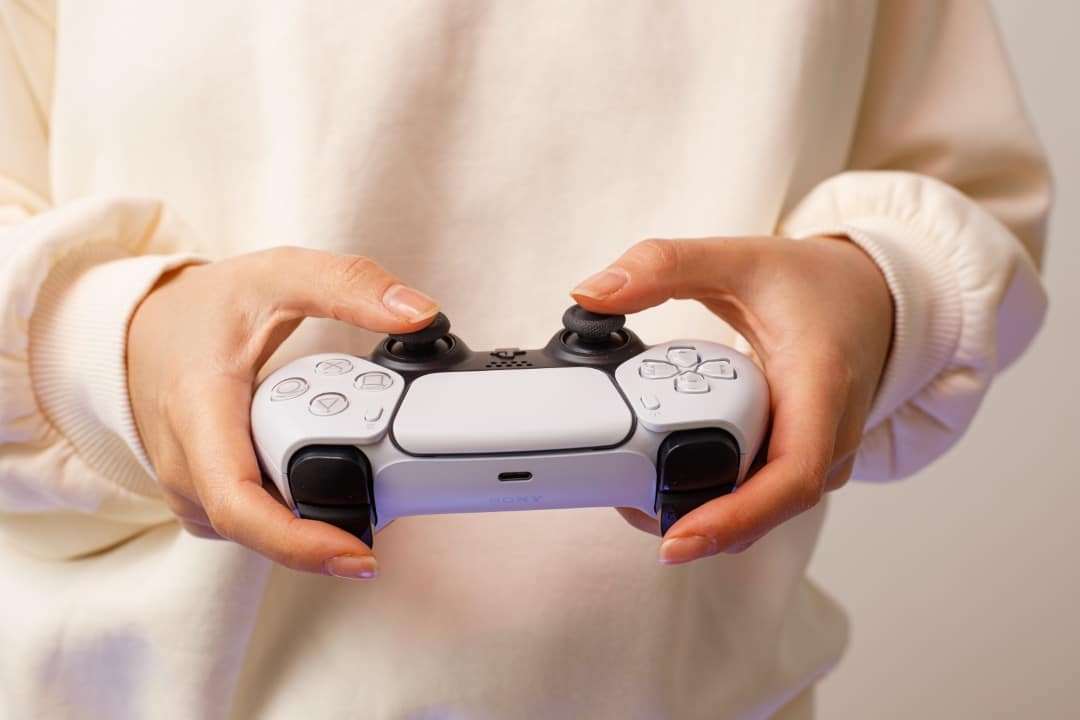
Calibrating the PlayStation 5’s DualSense controller appears as an alternative to correct the phenomenon known as “drift” in analog sticks. Este issue occurs when characters or cameras move on the screen without any interaction from the player, significantly impairing the gaming experience. Embora often associated with physical defects, in many cases a simple calibration adjustment may be enough to resolve the fault.
The recalibration process can be carried out directly via the console or via computer, using specific tools that allow you to reset the internal parameters of the accessory. The intervention seeks to restore the precision of the analogues, avoiding the need for replacement or complex repairs in the first place. Usuários finds these methods to be a practical solution to improve control response.
Calibração aims to correct drift and inaccuracy
Calibrating the PS5 controller’s main function is to optimize the system’s interpretation of the player’s commands, ensuring greater precision during gaming sessions. Essa measurement is especially useful when the DualSense starts to exhibit anomalous behavior. “Drift” is one of the most reported problems, characterized by the involuntary movement of elements in the virtual environment, even without touching the analog sticks.
On the same topic: PlayStation shows new GTA 6 commercial and heats up debate about graphics before preview on Netflix
Além of the drift, calibration can help in situations where the triggers demonstrate less sensitivity or there is a perception of unequal response between the sides of the control. Quando adjustment resolves or mitigates the fault, this often indicates an incorrect reading of commands by the DualSense internal board. On the other hand, the persistence of the problem suggests possible wear of the parts, whether due to natural use, accumulation of dirt or damage.
Muitos players choose to try controller software updates and calibration before considering purchasing a new accessory. Esta systematic approach aims to rule out software problems or small mismatches that can be resolved without deeper technical intervention. It is a crucial initial step in maintaining the life of the device. Carrying out these adjustments periodically can also prevent new problems from arising.
Procedimentos tuning on PlayStation 5
The PlayStation 5 console does not have a native tool for complete calibration of the DualSense analog sticks. Contudo, offers procedures that function as a practical recalibration. Estes are often the recommended first step before seeking specialized service. Antes of any adjustment attempt, it is essential to check that the control has the latest firmware installed, ensuring compatibility and functionality of all steps.
Para update the controller firmware, the user must follow a specific path in the console system. Menus may vary depending on the PS5 software version, so it is important to ensure that the system itself is up to date. The controller must be connected and the console turned on to begin the accessory update process.
The steps to check and install updates are:
More on this story: PlayStation 5 launches global ‘It Happens’ campaign to celebrate unique gaming experiences
- With the console turned on and the controller connected, access ‘Settings’.
- Entre in the ‘Accessories’ section.
- Selecione ‘Control (Geral)’.
- Procure for ‘DualSense Wireless Controller Software’.
- Instale available updates, if any.
If the issue persists after updating, a controller reset may be the next step. Este simple procedure seeks to restore the DualSense to factory settings.
Para perform reset:
- Desligue the PS5.
- On the back of the controller, locate the small reset button.
- Utilize a thin object, such as an unfolded paper clip, to press it for about 5 seconds.
- Conecte controls the console again using a USB cable.
- Ligue the PS5 and press the ‘PS’ button to sync the controller again.
Como ultimate alternative to direct console adjustments, the system offers some calibration options within its accessibility settings. Essas options can be used to tune the control response.
Learn more: Hackers unlock permanent fix for stick drift on Xbox controllers
Accessing these settings is done as follows:
- Abra the ‘Settings’ (gear icon in the top corner of the home screen).
- Entre under ‘Accessibility’.
- Selecione ‘Controls’.
- Clique in ‘Adjust controller settings’.
Nesta page, the user will have access to several options that allow them to customize the way the control responds to commands, which may include sensitivity adjustments and other parameters that influence accuracy.
Learn more: Marvel’s Wolverine leaks lead fans to rediscover 2009 X-Men game
Calibrate DualSense via computer with DualShock Tools
Para users looking for more detailed and precise adjustments, superior to those available on the console, the calibration of the PS5 controller can be done using a computer. One of the most popular alternatives in this scenario is the use of browser-based tools, which interact directly with the DualSense information. Entre Among these tools, the DualShock Tools stands out, a free platform widely used by the community for this type of service.
The DualShock Tools tool allows you to change the control’s internal calibration data, which requires extra attention at each step. The process begins with physically connecting the controller to the computer.
The detailed steps to calibrate the control on the PC are:
- With the DualShock Tools website open, connect the controller to the computer using a USB cable and check if the device recognition information is correct on the platform.
- Acesse the ‘Debug’ tab and look for the option to unlock NVS. The NVS is a memory area where the control stores calibration parameters, and by default, it remains protected against accidental changes. Unlocking is essential so that the settings are saved permanently after disconnecting the control.
- Realize calibration of the analogue center. Este procedure teaches the controller the exact resting position of the sticks, ensuring that there are no deviations when the analog stick is in its neutral position.
- Ajuste the range of analogue. Esta step measures the total physical travel that each stick can travel, redefining the minimum and maximum limits recognized by the controller, which is crucial for full gaming response.
- Execute calibration fine tuning. Esta function acts as an accuracy correction, refining small differences that may persist in sensor readings even after main calibrations, optimizing accuracy.
- When completing all the steps, it is imperative to save the changes made to the tool. Then, test the controller in different games or other diagnostic pages to see if the sticks have returned to expected behavior and accuracy has been restored.
Using tools like the DualShock Tools gives you a more granular level of control over calibration. Isso can be decisive in solving drift and inaccuracy problems that were not solved by the more basic options available directly on the console. The gaming community frequently shares tips and experiences to optimize the use of these platforms.