
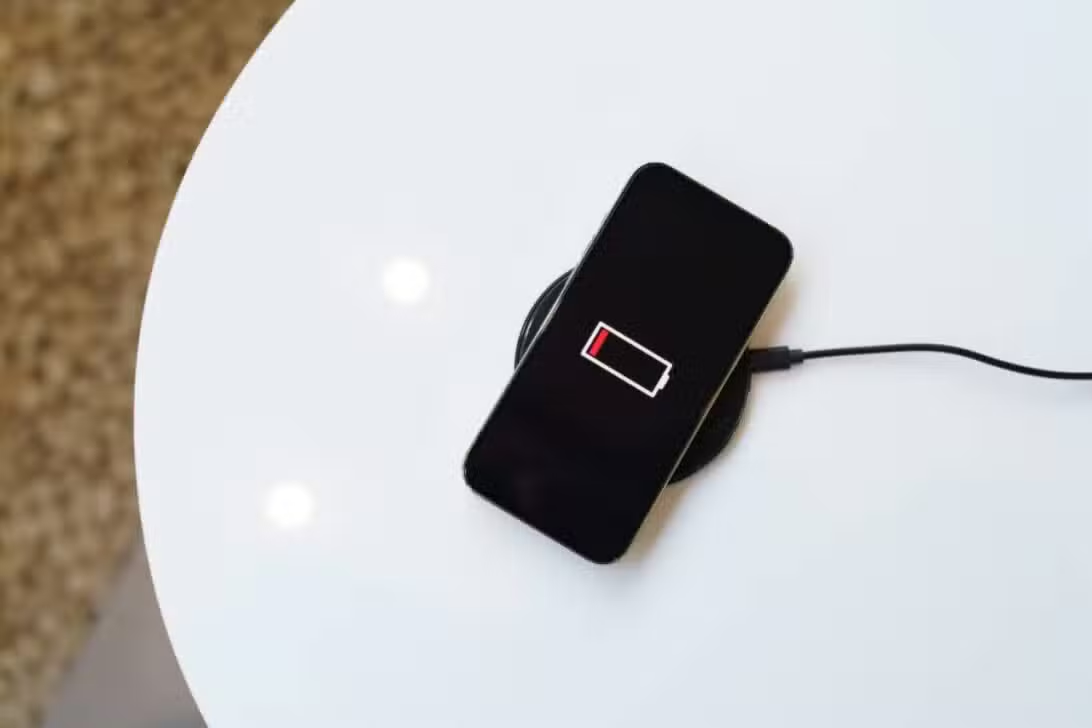
Imagine being away from a charger, with your phone’s battery at its limit and an urgent need to extend its battery life. In an attempt to keep the device working, you activate Battery Saving Mode, and instantly, the screen goes dark, the animations become slower and the device, once agile, starts to operate with less fluidity.
The battery saver function on Android is designed to disable everything that is not essential. The main goal is to make the remaining charge last as long as possible by putting background apps to sleep, reducing screen brightness, and drastically slowing down the CPU’s processing speed. When opening any application, the difference in performance becomes evident.
While it’s a useful tool in emergency situations, continued use of economy mode may be less than ideal unless you just need to make a crucial call. In addition to compromised performance, the user may miss important notifications and alerts, as applications stop receiving updates. This can be a problem for urgent emails or instant messages.
What are the impacts of economy mode on the performance of your device?
When you activate the saving feature, the phone immediately starts eliminating secondary functions. One of the most notable changes is the reduction in screen brightness, one of the biggest energy consumers, responsible for 40% to 50% of total battery consumption. The feature also disables several background processes, preventing applications from checking for updates, which affects notification delivery. Applications that depend on constant synchronization, such as messengers, emails and navigation apps, may have their functioning compromised.
At the same time, the CPU goes into conservation mode, considerably slowing down the device. Although some devices, such as Samsung Galaxy devices, offer options to adjust power saving mode, performance control can still reduce processor speed by up to 30%.
There are also extreme versions of battery saver that cut essential features, from Wi-Fi to screen color, to extend the battery life as long as possible. In general, the user sacrifices fluidity and shine to gain extra usage time, which often becomes more annoying than beneficial. Therefore, manually managing device settings may be a more useful alternative.

Most Effective Strategies to Optimize Smartphone Charge
Android’s battery saver mode can turn your device into a slower, more limited version. To maintain a more normal usage experience, considering manual adjustments is an option. Disabling Bluetooth, for example, doesn’t tend to make a significant difference to battery life on most modern devices, which already have smart operating systems that manage power consumption by monitoring usage patterns and optimizing application activity. Activating the saver can even lead the user to open and close apps repeatedly, nullifying any savings.
If you are constantly worried about the battery, a tip is to activate Dark Mode, especially on OLED screens. This feature turns off black pixels, which not only reduces eye fatigue, but also saves battery life. Another effective strategy is to check your battery settings to identify and disable resource-intensive background apps. Changing location services permissions so that they work “only while using the app” can also yield notable savings.
Adopting these practices consistently can provide greater autonomy for the device, allowing you to enjoy more time on a single charge. By minimizing overall battery consumption, the need to resort to extreme measures like Battery Saver Mode, which compromise performance and usage comfort for marginal gains, becomes less frequent.