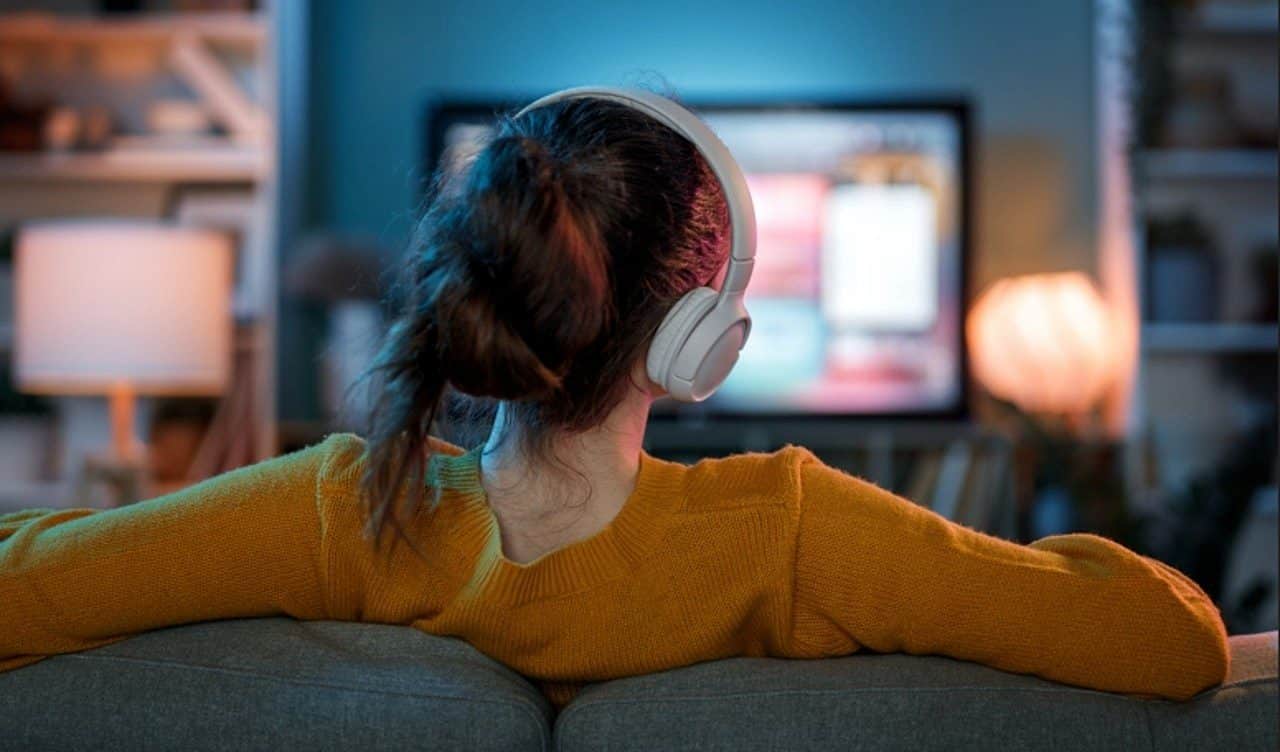
Watching television with Bluetooth headphones becomes a practical alternative for those seeking privacy or wanting to isolate themselves from external noise, without disturbing other people in the home environment. This procedure, considered simple, can be easily performed on devices equipped with the Google TV system, as we will show below.
It is necessary to consider that, although the approach is generally direct and uniform, certain name variations in the settings may arise depending on the edition of Google TV or the specific device in use. Among the equipment that operates with this system are televisions from the brands TCL, Sony and Hisense, as well as the Chromecast with Google TV and the Google TV Streamer 4K.
To pair a Bluetooth headset with Google TV, follow the instructions detailed below:
- On the Google TV home screen, go to your profile picture or initial, located in the top right corner.
- Then choose the “Settings” option.
- Go to “Remote and accessories” and then “Pair remote or accessory.”
- Make sure your headset or other wireless device is in pairing mode and visible to other devices.
- Locate and select the device you want to connect from the list that appears on the television.
- Finally, in the Bluetooth pairing request window, confirm the action by choosing “Pair”.

Connection restrictions and how to troubleshoot Bluetooth headphones on Google TV
Although the Google TV platform offers support for connecting multiple wireless devices via Bluetooth, including headphones, speakers and game controllers, the functionality allows only one accessory to be paired at a time.
Therefore, the “Remote control and accessories” section offers the necessary tools to manage devices already connected, making it possible, for example, to change the name or remove a device from the system’s memory.
If the headset or other peripheral has already been paired previously, reconnection is done through the settings, accessible from the user profile menu. In this scenario, simply go to “Remote control and accessories”, select the specific device from the list of accessories and click on the “Connect” option.
For situations in which the Bluetooth connection fails, initial corrective measures consist of turning the accessory off and on again before trying to pair again. It is also advisable to disconnect any other devices that are not in use in order to prevent possible signal interference.
A more in-depth analysis may involve connecting a separate Bluetooth device to the television to identify whether the problem lies with the original accessory or the TV set itself. Another effective option is to unplug the TV for about 10 seconds and, after turning it back on, try pairing again.
In order to pinpoint the cause of persistent connection problems, the accessory can be tested on other equipment, such as smartphones or tablets. If the device works correctly on other devices, it is likely that the issue is with Google TV, and a factory reset is recommended.