WhatsApp Android backup guide: export by email, save to Google Drive or use Tenorshare iCareFone

Losing a phone, having it stolen or damaging it can erase years of WhatsApp conversations. A backup keeps those chats saved, so they can be restored the next time the account is registered on a new installation of the app.
This guide covers the three ways the app and its partners offer to protect chats on Android. The methods are sending chats by email, saving a copy to Google Drive and using the Tenorshare iCareFone for WhatsApp Transfer software on a computer. Each one has its own limits and uses.
Sending chats by email and the size of the file
Exporting by email is the simplest route, and it lets you view the messages on a phone or computer whenever you need. The method does not allow restoring the chats on another device. Media files can still be saved and opened later from the mailbox.
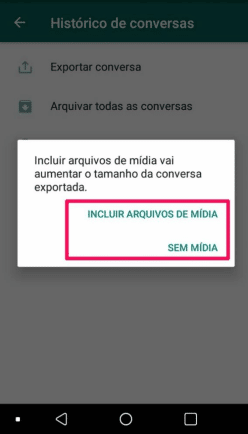
Open WhatsApp, tap the More options icon and choose Settings. Then tap Chats, scroll to the bottom and open Chat history. The first option, Export chat, lets you select one conversation to send, and only one chat can be exported at a time.

After you pick a conversation, WhatsApp asks whether to include media files. Chats with many audio files, videos and photos produce a larger file, and the export is limited to the 10,000 most recent messages with media or the 40,000 most recent without media.
Next, choose your email app from the list of options and type your own address in the To field. Then tap Send, the icon shaped like a paper plane.

Once the message arrives, the media files can be viewed in the inbox, and the text opens as a .txt file. The whole backup can be downloaded and saved to a computer.
Saving copies to Google Drive from the app settings
WhatsApp’s own backup option sends copies to Google Drive. The chats can be restored on any other Android phone that uses the same phone number and the same Google account.
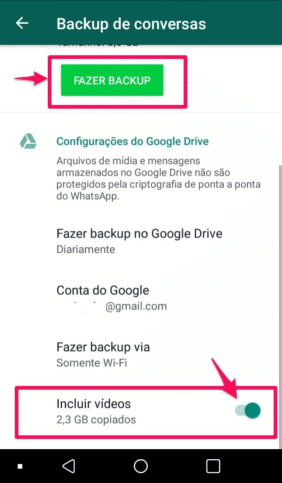
Open the three-dot menu in the top right corner, tap Settings and then Chats. Scroll to the end of the screen and choose Chat backup, which is the option that controls the cloud copy.

On the backup screen, you decide whether videos go into the copy and which Google account will receive it. Scroll to the end of the screen and tap Back up to start the upload to Google Drive.
Follow: WhatsApp two-step verification password: how to switch from six-digit PIN
The upload can be quick or slow, depending on the connection and the amount of media. A good Wi-Fi network and few media files speed up the process. The app should be left open until the upload is complete.
Backing up WhatsApp with Tenorshare iCareFone on a computer
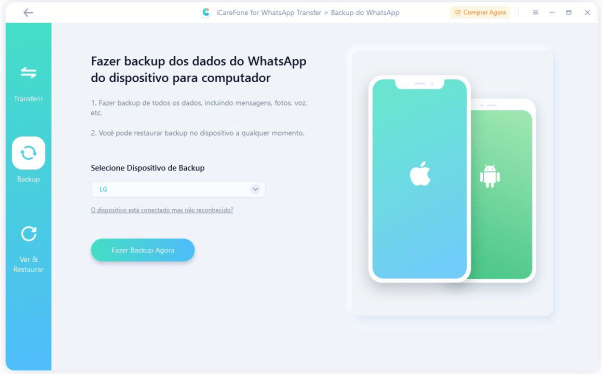
The Tenorshare iCareFone for WhatsApp Transfer program lets you view every file in the backup, save them to a computer, restore them and move them to another device, whether Android or iPhone. Download the software to a computer, start it and connect the phone. In the main window, click WhatsApp to open the next screen.

In that screen, click Backup in the side menu, select your device and click Back up now. The program asks you to create a new backup on the phone and follow the instructions and screenshots shown on the screen.
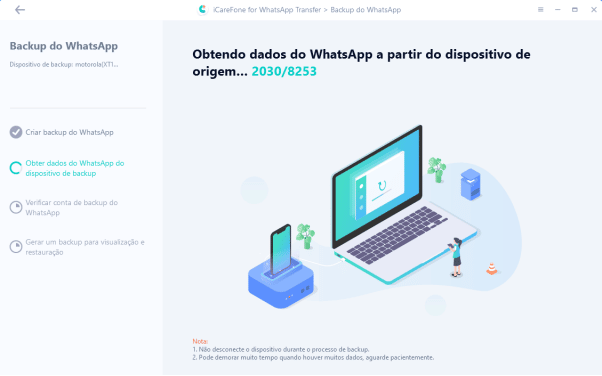
After that, the software starts collecting the WhatsApp data, and you need to wait for the whole process to finish. The next step asks you to enter your number and click Verify.
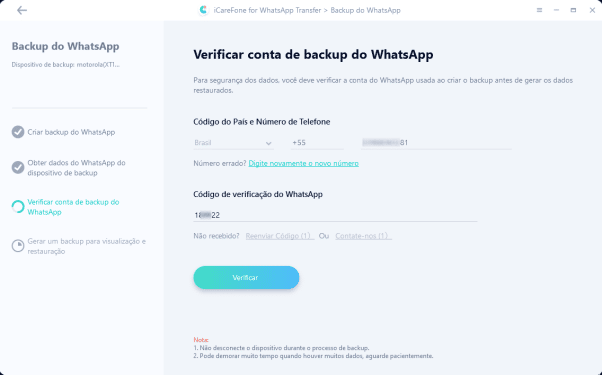
Type the code that arrives by SMS and click Verify again. The program then checks the number you are backing up.
When the software finishes generating the backup, you can view the data or restore it to another device. The tool lets you pick the copy you want to open, which makes it easier to find specific files.

Backing up WhatsApp Business with the same program
Users who run WhatsApp Business can use the same Tenorshare iCareFone program to back up that account. The software is presented as a single tool for both versions of the app.
Moving WhatsApp from one phone to another
The iCareFone program can also transfer WhatsApp and WhatsApp Business between Android and iOS. An Android user can move the account to an iPhone and keep using the app there.
Install the program on the computer, open it and choose the WhatsApp option. Then connect the phone that currently has the account to the computer, using the USB cable.
Read also: Meta AI on WhatsApp offers image creation, text editing and group chat tools in Brazil

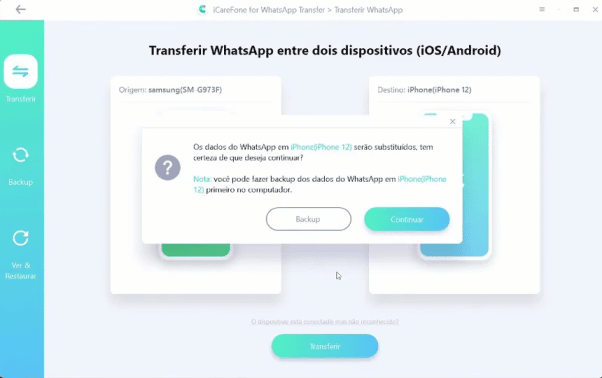
Next, connect the phone that will receive WhatsApp to the computer with a second USB cable. When the software identifies both devices, click Transfer and confirm Continue in the pop-up window.

A window shows the steps to back up WhatsApp on the source phone. After you finish them, click Continue, and the software starts obtaining the backup data, which can take a few minutes.
Enter the WhatsApp number used on the account and click Verify. A code arrives by SMS; type it in the program and click Verify again.

On the receiving phone, download WhatsApp, enter the same number and type the new code sent by SMS. Then go back to the software and click Logged in.

The software then moves WhatsApp between the phones, which takes a few minutes. When it reports that the transfer is finished, the devices can be unplugged from the computer and the account can be used on the new phone.
Three routes to save WhatsApp chats on Android
Email export keeps readable copies of conversations, and Google Drive keeps the copy that WhatsApp can restore on a new Android phone. The Tenorshare iCareFone program lets you view, save and transfer the data from a computer, including between Android and iPhone.