Learn how to recover passwords saved on Google: a complete step-by-step guide for Android and iPhone phones
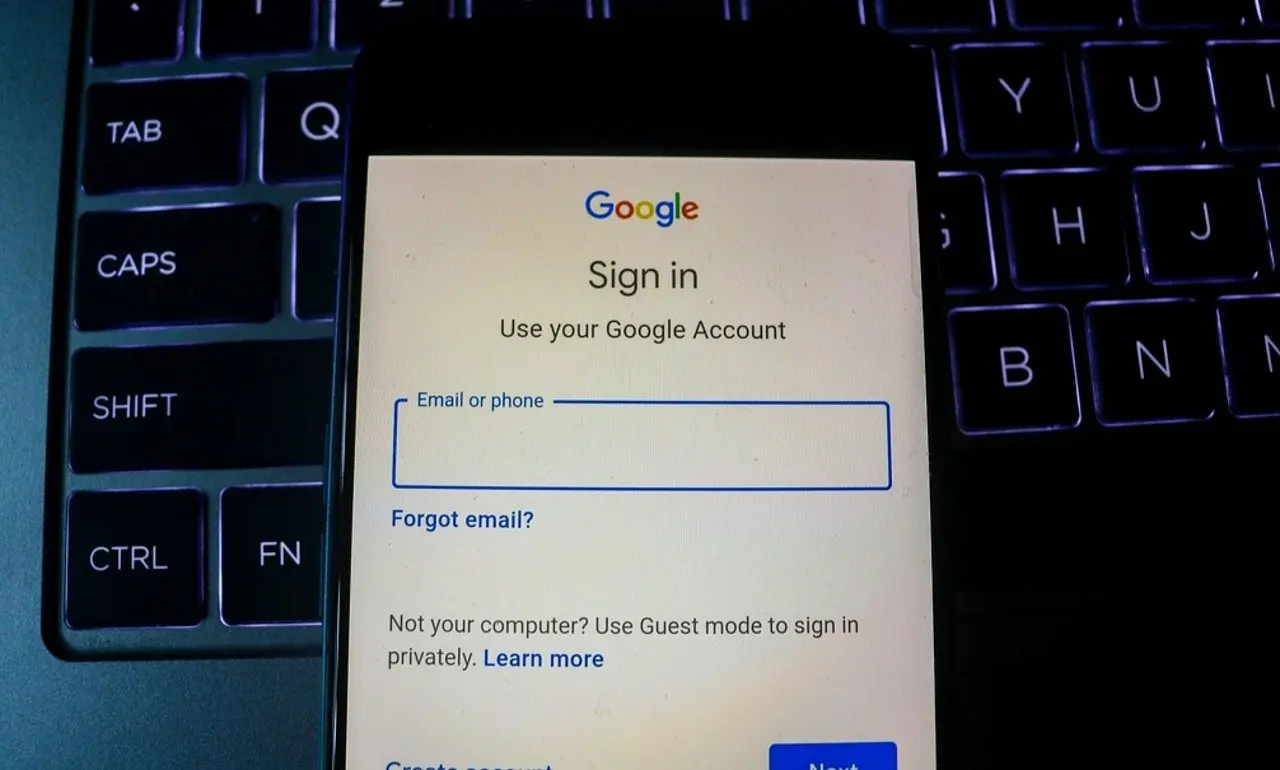
Senha Google - shofiphoto/Shutterstock.com
Photo: Senha Google - shofiphoto/Shutterstock.com

Discovering passwords stored on Google doesn’t have to be a complex task. Google Password Manager centralizes and protects your credentials, eliminating the need to memorize each one and speeding up logging in across multiple devices. This feature can be found in different ways, depending on your device’s operating system. On Android cell phones, the tool is integrated into the system settings, while on iPhones, access is via the Google app. Additionally, users have the option to disable automatic saving of new accesses. Next, see how to access your saved passwords and how to adjust the Password Manager settings directly from your smartphone.

Accessing Google Credentials on Android Devices

Step 1.To view the passwords stored by Google on your Android device, start the process by accessing “Settings” and then tapping the “Google” option. Then select “All services”.

Step 2.Scroll down until you find and select the “Google AutoFill” feature, and then choose “Passwords”.

Step 3.In this step, select the platform or service whose credential you want to recover. To reveal the hidden password, tap the “eye” icon. In this same section, you can add notes, make edits or remove the saved password.

Finding passwords saved on Google using iPhone

Step 1.To access passwords saved on Google using an iPhone, open the Google app and tap the icon with your profile photo or initials, located in the top right corner of the screen.

Step 2.Proceed to the “Settings” section and then select the “Autofill” option.

Step 3.Within the “Passwords” area, you will be able to view the complete list of stored credentials. Choose the password you want to review.

Step 4.The password will be displayed with hidden characters (dots). To view it in full, tap “Edit”. On this same page, you will also find options to delete the password or generate a more robust credential.

Managing automatic password saving on Google

Step 1.To configure Password Manager activation or deactivation, open the Google Chrome application (or access the browser version) and tap the three dots icon, located in the bottom right corner of the screen. Then select “Password Manager”.

Step 2.Access the “Settings” option. Finally, toggle the switch next to “Offer to save passwords and passkeys” to activate or deactivate the function according to your preference.


Veja também em Latest News (EN)

Portugal draws goalless with Colombia in the 2026 World Cup and Cristiano Ronaldo has a lackluster performance
Latest News (EN) • 28/06/2026

Portugal draws goalless with Colombia in the 2026 World Cup and Cristiano Ronaldo has a lackluster performance

VAR decides to cancel Colombia’s goal against Portugal after a thorough analysis of the tip of the boot, impacting the classification in Group K of the 2026 World Cup
Latest News (EN) • 28/06/2026

VAR decides to cancel Colombia’s goal against Portugal after a thorough analysis of the tip of the boot, impacting the classification in Group K of the 2026 World Cup

Lautaro Martínez simply scores a great penalty in Jordan x Argentina at the 2026 World Cup
Latest News (EN) • 27/06/2026

Lautaro Martínez simply scores a great penalty in Jordan x Argentina at the 2026 World Cup

Rota officer and family member of Eloá Pimentel is ambushed by gunfire at a traffic light in ABC Paulista
Latest News (EN) • 27/06/2026

Rota officer and family member of Eloá Pimentel is ambushed by gunfire at a traffic light in ABC Paulista

Lo Celso scores a great free kick in Jordan vs Argentina at the 2026 World Cup
Latest News (EN) • 27/06/2026

Lo Celso scores a great free kick in Jordan vs Argentina at the 2026 World Cup

Lo Celso scores a wonderful goal, but the goal is disallowed for offside in Jordan x Argentina at the 2026 FIFA World Cup
Latest News (EN) • 27/06/2026

Lo Celso scores a wonderful goal, but the goal is disallowed for offside in Jordan x Argentina at the 2026 FIFA World Cup

Sea of ​​Thieves update brings customizable servers and changes the way you explore the ocean
Latest News (EN) • 27/06/2026

Sea of ​​Thieves update brings customizable servers and changes the way you explore the ocean

Sea of ​​Thieves turns players into creators with customizable servers in new update
Latest News (EN) • 27/06/2026

Sea of ​​Thieves turns players into creators with customizable servers in new update

Data leak indicates return of Spider-Man cosmetics and new villains to the Fortnite universe
Latest News (EN) • 27/06/2026

Data leak indicates return of Spider-Man cosmetics and new villains to the Fortnite universe

End of the wait brings the classics Call of Duty Black Ops 1 and 2 to Sony consoles in July
Latest News (EN) • 27/06/2026

End of the wait brings the classics Call of Duty Black Ops 1 and 2 to Sony consoles in July

Rumors about the Galaxy S27 Pro indicate a giant battery and advanced cameras in a compact format
Latest News (EN) • 27/06/2026

Rumors about the Galaxy S27 Pro indicate a giant battery and advanced cameras in a compact format

Developer sets the start of pre-sales for Grand Theft Auto VI and new release date
Latest News (EN) • 27/06/2026

Developer sets the start of pre-sales for Grand Theft Auto VI and new release date

Epic Games includes choreography by Kevin O Chris in Fortnite and expands the reach of national funk
Latest News (EN) • 27/06/2026

Epic Games includes choreography by Kevin O Chris in Fortnite and expands the reach of national funk

Spain advances and Cape Verde celebrates unprecedented place in the World Cup after decisive games
Latest News (EN) • 27/06/2026

Spain advances and Cape Verde celebrates unprecedented place in the World Cup after decisive games

2026 World Cup: teams secure a place, but three places remain undefined among third parties
Latest News (EN) • 27/06/2026

2026 World Cup: teams secure a place, but three places remain undefined among third parties