

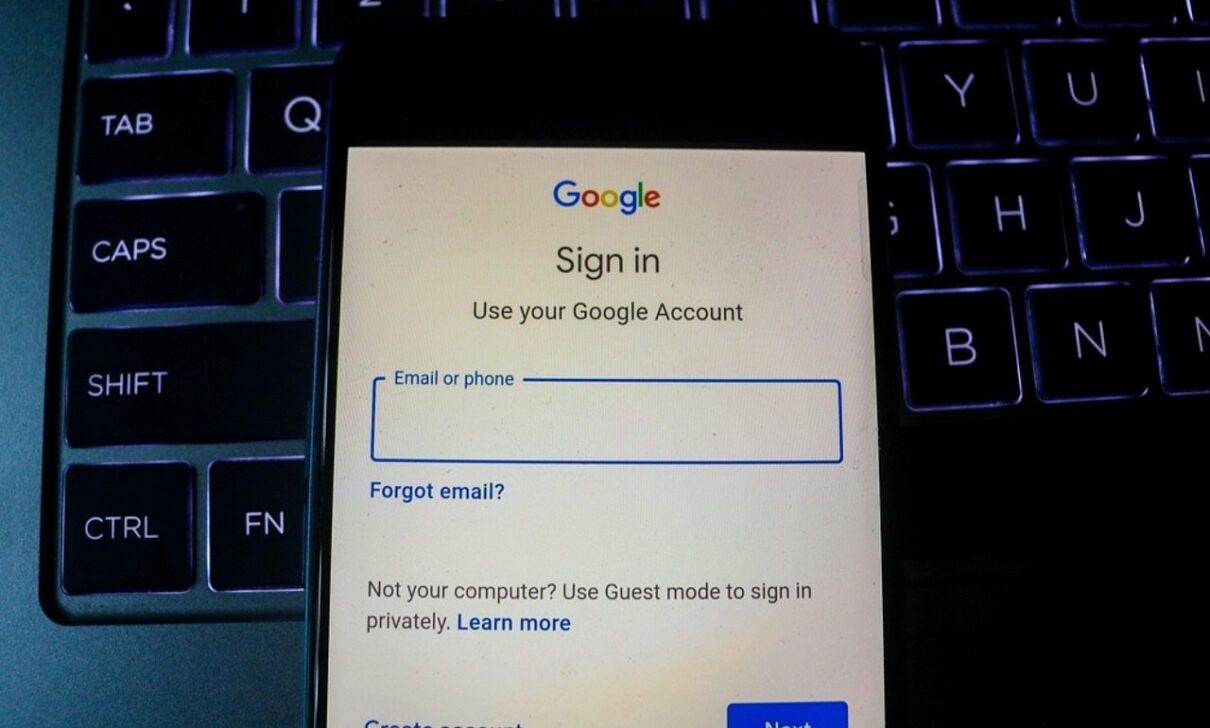
Discovering passwords stored on Google doesn’t have to be a complex task. Google Password Manager centralizes and protects your credentials, eliminating the need to memorize each one and speeding up logging in across multiple devices. This feature can be found in different ways, depending on your device’s operating system. On Android cell phones, the tool is integrated into the system settings, while on iPhones, access is via the Google app. Additionally, users have the option to disable automatic saving of new accesses. Next, see how to access your saved passwords and how to adjust the Password Manager settings directly from your smartphone.
Accessing Google Credentials on Android Devices
Step 1.To view the passwords stored by Google on your Android device, start the process by accessing “Settings” and then tapping the “Google” option. Then select “All services”.
Step 2.Scroll down until you find and select the “Google AutoFill” feature, and then choose “Passwords”.
Step 3.In this step, select the platform or service whose credential you want to recover. To reveal the hidden password, tap the “eye” icon. In this same section, you can add notes, make edits or remove the saved password.
Finding passwords saved on Google using iPhone
Step 1.To access passwords saved on Google using an iPhone, open the Google app and tap the icon with your profile photo or initials, located in the top right corner of the screen.
Step 2.Proceed to the “Settings” section and then select the “Autofill” option.
Step 3.Within the “Passwords” area, you will be able to view the complete list of stored credentials. Choose the password you want to review.
Step 4.The password will be displayed with hidden characters (dots). To view it in full, tap “Edit”. On this same page, you will also find options to delete the password or generate a more robust credential.
Managing automatic password saving on Google
Step 1.To configure Password Manager activation or deactivation, open the Google Chrome application (or access the browser version) and tap the three dots icon, located in the bottom right corner of the screen. Then select “Password Manager”.
Step 2.Access the “Settings” option. Finally, toggle the switch next to “Offer to save passwords and passkeys” to activate or deactivate the function according to your preference.